
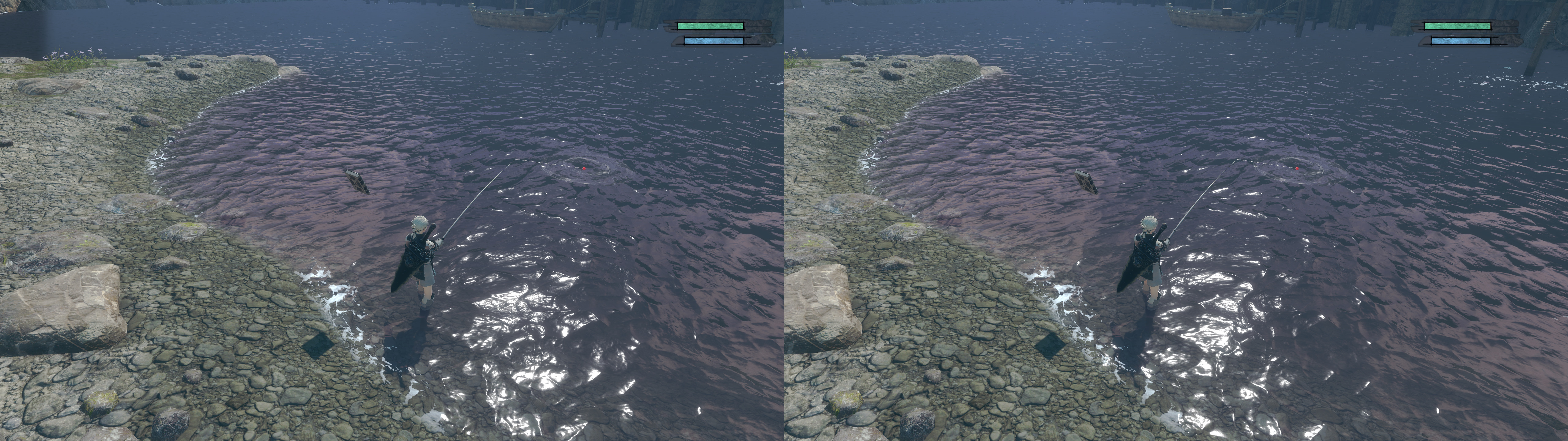
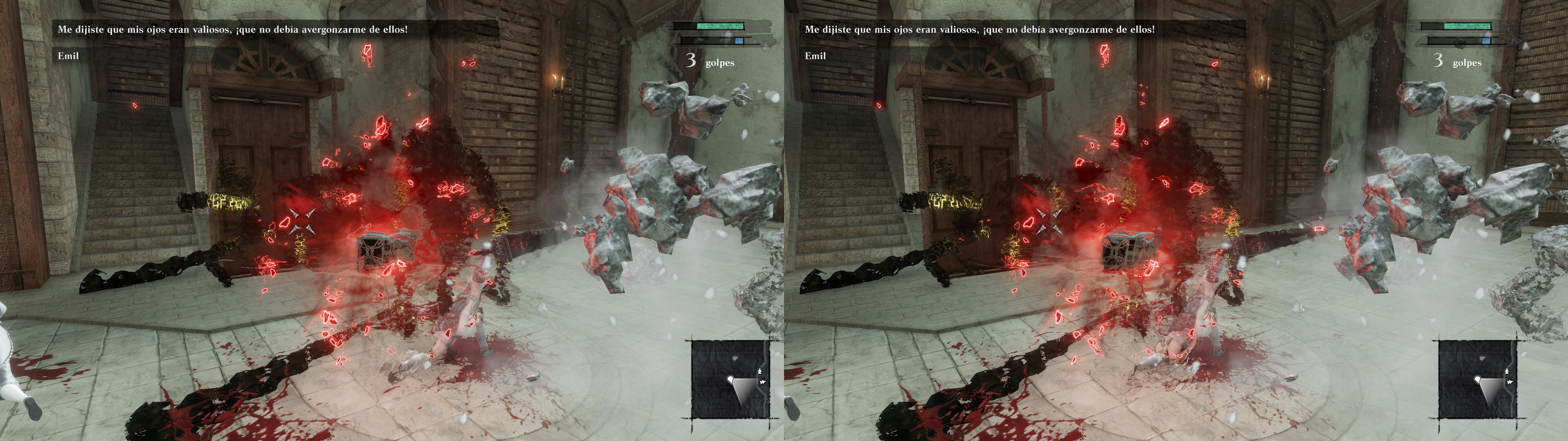
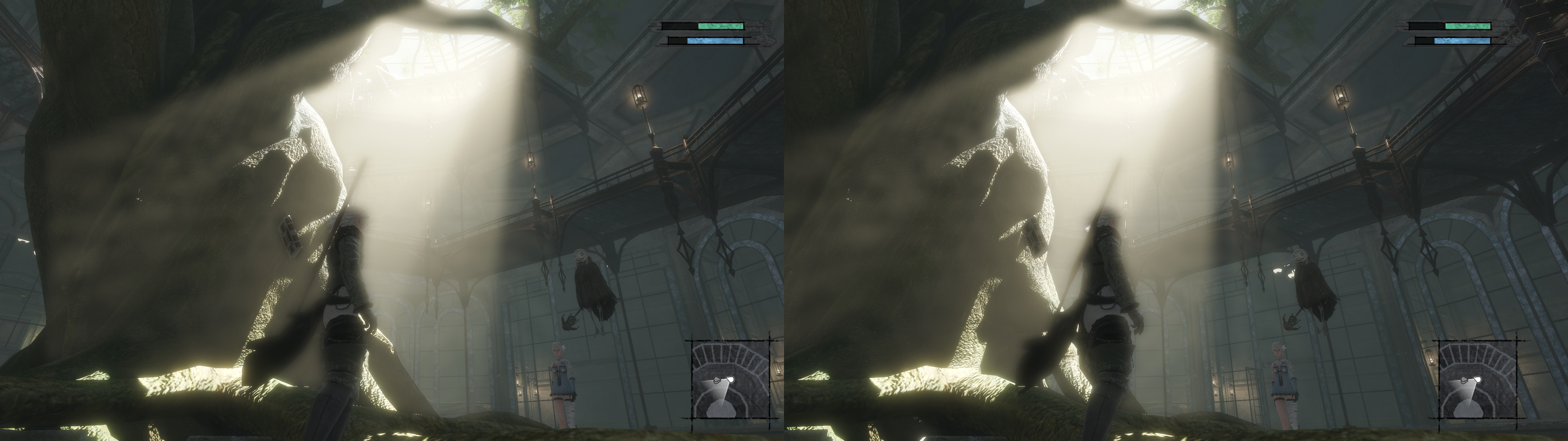
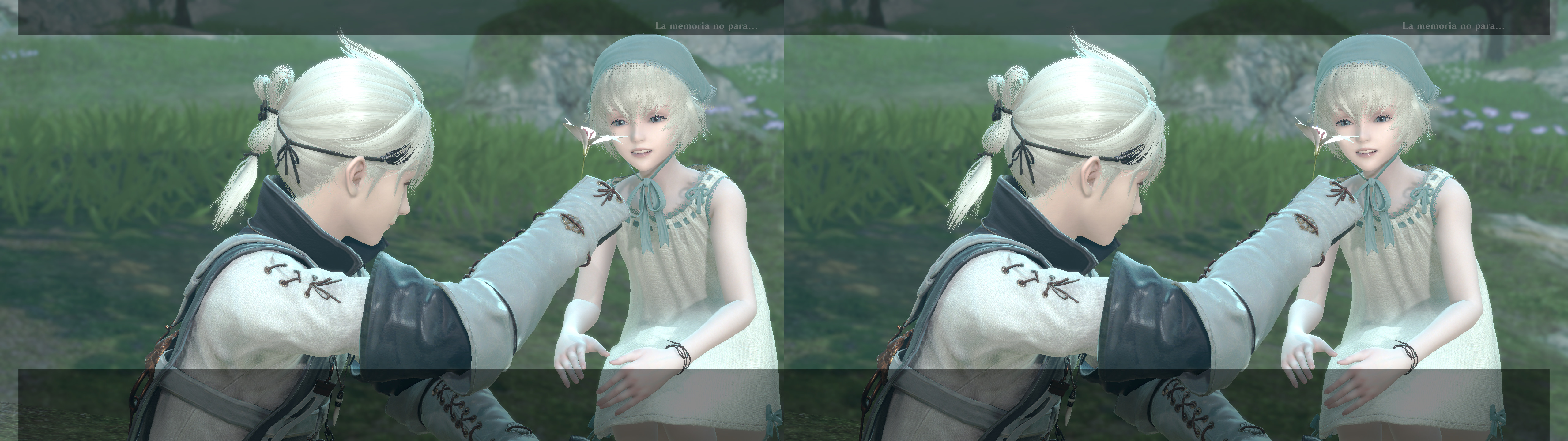
3D Vision fix for NieR Replicant. Tested most of the time at maximum settings.
Fixed
- Haloing problems.
- Shadows.
- Lighting.
- Fog.
- Skybox.
- Volumetric lighting.
- Light shafts.
- Distortion effects.
- Screen space reflections.
- Stereoized specular reflections.
Installation
- Download this file and extract its contents in the "NieR Replicant ver.1.22474487139" folder, where "NieR Replicant ver.1.22474487139.exe" is.
- Launch the game and let it overwrite the profile.
- Preferably play the game in borderless fullscreen windowed mode, which triggers 3D in this game (Windows 7 may not work right with that). That way you can alt+tab safely without crashes.
Hotkeys
- F1: convergence presets (0, 0.5, 1, 2, 3). 2 by default. Depending on your convergence taste, something in the 2.5 to 3 range may be preferable for you for normal gameplay. Cutscenes will trigger a preset with 0.65 convergence.
- Disabled barrel distortion, which is annoying in 3D.
Known issues
- Some effects can be a bit weird when some (very few) cutscenes tilt the camera. Cutscenes are unpausable and there isn't a free camera mode, so I can't reliably try to fix that.
- Some effects can be a bit weird when some (very few) cutscenes tilt the camera. Cutscenes are unpausable and there isn't a free camera mode, so I can't reliably try to fix that.
Installation
- Download this file and extract its contents in the "NieR Replicant ver.1.22474487139" folder, where "NieR Replicant ver.1.22474487139.exe" is.
- Launch the game and let it overwrite the profile.
- Preferably play the game in borderless fullscreen windowed mode, which triggers 3D in this game (Windows 7 may not work right with that). That way you can alt+tab safely without crashes.
Update: as of the 1.0.3 patch, the game strangely limits the fps to 57. To restore the old behavior, save your game settings at least once after the update and go to the "C:\Users\XXXXX\Documents\My Games\NieR Replicant ver.1.22474487139\Steam\XXXXX" folder, open "drawing_settings.ini" and set "FpsControlDisable = 1".
Hotkeys
- F1: convergence presets (0, 0.5, 1, 2, 3). 2 by default. Depending on your convergence taste, something in the 2.5 to 3 range may be preferable for you for normal gameplay. Cutscenes will trigger a preset with 0.65 convergence.
- F2: HUD depth. 40% by default.
- F3: HUD toggle. Not disabled by default.
- F4: FXAA toggle. Disabled by default.
- F5: motion blur toggle. Disabled by default. It doesn't include motion blur from using magic, dodges, etc. Just the annoying camera motion blur.
- F6: depth of field toggle. Not disabled by default.
- 0 (not the numpad): bloom strength multipliers (x0, x0.25, x0.5, x0.75, x1, x1.5, x2). x1 by default.
Notes
- Don't ask me how to make it work alongside Special K or other mods.
- Don't ask me how to make it work alongside Special K or other mods.
- If the mouse cursor annoys you, open "d3dx.ini" and set "hide_cursor = 1" instead of 0. Press F10 if after that you made the change while playing.
If you liked the fix and want to contribute for more future fixes, you can donate to this PayPal account: masterotakusuko@gmail.com

amazing :) thank you !!!
ReplyDeleteHow do you launch a non listed game with Helix?
ReplyDeleteI have to disable 3D on game launch otherwise the game won't start. Manually triggering 3D at the main menu works, however.
ReplyDeleteThanks! Works great with Geo-11 x64 dll files and main ini stereo=2
ReplyDeletePlaying through with this fix via geo-11, I've experienced fatal crashes in the following spots:
ReplyDelete- When the Aerie is destroyed during Part 2
- When the fight between two characters is finished before the Shadowlord, during the point of no return
I am still on a "first" playthrough of the game, if that matters.
I'm using the fix with geo-11 v0.6.56 (latest linked on the geo11 blog post as of 10/10/2025). I haven't made any other changes to the included fix, nor done any sort of modifications to the game outside of overlaying the geo11 files with the original 3D Vision-based fix.
I am using a Samsung Odyssey 3D monitor for a display, and leveraging the 3DGameBridge add-on through Reshade. I'm not sure if this would happen without the specifics of 3DGameBridge, but I can give that a test some time later by running the game in 3D on my 3DTV (thus only using geo11's sbs output; I could try getting one of my 3D Vision monitors running again if that would be worth trying). I do have save files that start close to both events if that would help debug (though, of course, both require going through a series of fights before the crash happens). Uninstalling the fix allows the game to continue normally.
My setup, if it matters:
- CPU: AMD Ryzen 7 9800X3D
- GPU: Nvidia 2080Ti
- - Driver: 581.42
- OS: Win10 (latest)
I realized that the crashes occur whenever the game attempts to play a FMV. There's an easier place to check than dealing with specific points in the game; just wait until the demo reel starts by not pressing anything at the main menu. I attempted to see if it was a codec related issue by changing the archives for all cutscenes to be this:
Deletehttps://www.nexusmods.com/nierreplicant/mods/44
Specifically the HEVC, since my 2080 ti cannot natively decode AV1. The encoder did not do the ATRACT videos, so I renamed one of the ones that were encoded, and it still crashed the game (removing the 3D fix completely, and letting the modified ATRACT video play worked fine).
Likely not relevant here, but I did find discussion specifically about Replicant in an issue regarding DXVK:
https://github.com/doitsujin/dxvk/issues/2048
idk if that would give a clue on how geo11 is affecting the overall pipeline. Given that (I assume) this worked fine with 3DMigoto/3D Vision.
If anyone else happens to run into this issue, the best advice I can give is to not have 3D enabled during sections that will lead to an FMV; the two bullets above are two such places. There's a few others (so save often).
Does this not work anymore? i cannot get the 3d to trigger at all with this file
ReplyDeleteWorks fantastic (in SBS). Thanks!
ReplyDelete