Showing posts with label Tweak Guide. Show all posts

Friday, December 8, 2023

Ys SEVEN


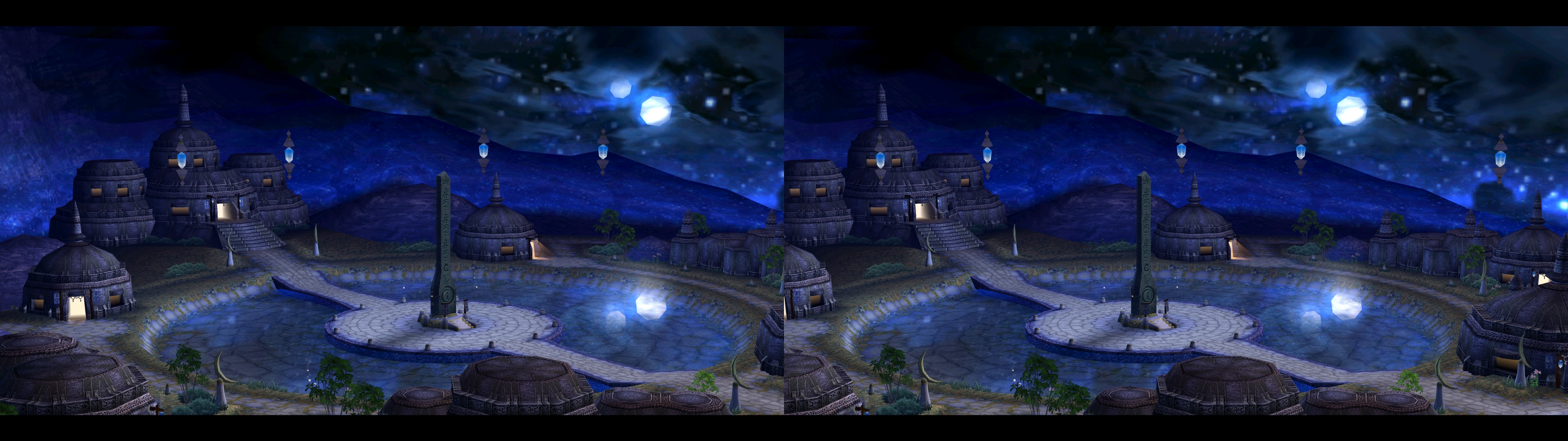
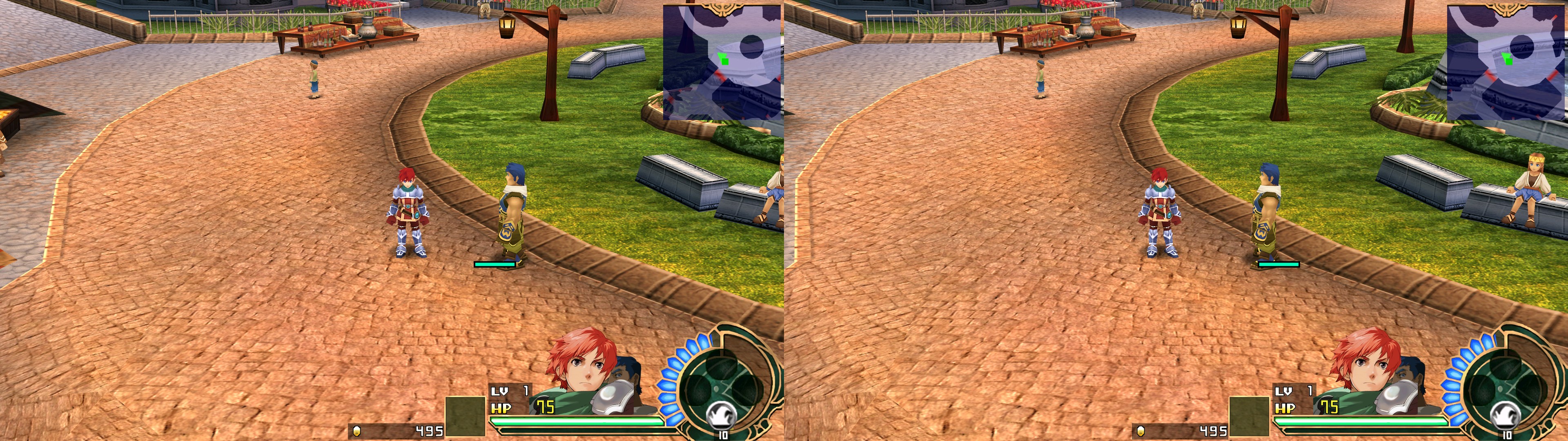
This post contains both a guide to make the game run in its original DX9 API in 3D Vision, and a geo-11 fix that needs to be used alongside dgVoodoo, which converts the game from DX9 to DX11.

-----------------------------------------------------------------------------------------------------------------------------
DX9 guide for 3D Vision

This isn't a fix, but a guide to make the game 100% perfect in 3D (setting discovered thanks to the help of Kaimasta). Without any tweaks, the game will appear totally flat, the same as in 2D.

Instructions
- Open Nvidia Profile Inspector, then open or create (if it doesn't exist yet) the profile of the game (for "Ys7", "ys7.exe" in Inspector).
- In the "Stereo" section, set "StereoTextureEnable" to "0x00000027". Set "StereoProfile" to "Yes" too if you want.
- Save the changes and play the game. The HUD will be at screen depth, but the game will look perfect.


Recommendations
- If you are going to use texture packs, like I do, get the latest SpecialK build made for this game here ("Ys_Test7.7z" at the time of this post) and unzip it in the game folder: https://github.com/Kaldaien/SpecialK/releases/tag/sk_special_projects
- Texture packs here and some little stuff in my github (I'll probably upload more textures in the future).
- As of this date (2017-09-28), make sure your max resolution or DSR resolution available is 3840x2160 (especially if you play in fullscreen) and not anything higher (or in between 2560x1440 and 3840x2160), to avoid a currently unfixed bug.

-----------------------------------------------------------------------------------------------------------------------------

DX11 fix

geo-11 (with build v0.6.182): download this file and extract its contents in the root folder of the game ("Ys SEVEN", where "Ys7.exe" is). Remember to edit "d3dxdm.ini" to change your "direct_mode" to the output you need. For 3D Vision monitors, "nvidia_dx11" may be the only one that works (I can't test this mode).
- Install dgVoodoo (v2.82.1 at the time of writing this. Use it in case newer versions may break the fix) by copying the "MS\x86\D3D9.dll" file to the folder where you installed the fix. Then run "dgVoodooCpl.exe" to configure dgVoodoo similar to this (VRAM needed or useable may vary for you. And this game doesn't have MSAA by itself (it has FXAA as an option), so you can force it with dgVoodoo):


- The first time you install dgVoodoo for the game, you should run the game config first, to set your resolution. It's important to set Window Mode to "Borderless" to avoid big issues with dgVoodoo.


- Run the game.


Hotkeys (DX11)
- F1: three convergence presets (6, 12, 18). 12 by default.


Recommendations
- With this conversion to DX11, you probably can't use Special K to load custom textures. But you can still use the base Joyoland texture pack, which is good enough for me.


If you liked the fix and want to contribute for more future fixes, you can donate to this PayPal account: masterotakusuko@gmail.com
Or you can join my Patreon: https://www.patreon.com/masterotaku

Tuesday, July 21, 2020

Might and Magic VII: For Blood and Honor

Use dgVoodoo to convert the game to DX11:

  • Download and unzip dgVoodoo to any folder you choose

  • From “MS/x86” folders copy “D3D8.dll”, D3D9.dll”, “D3DImm.dll” and “Ddraw.dll” and place them to the game’s installation folder where “MM7.exe” is located

  • Launch dgVoodoo and Set Config folder/Running instance: “folder where your game’s exe file is located”

GENERAL tab:

  • Output API: Direct3D 11 (feature level 11.0)

  • Adapter(s) to use/enable: "Your graphics card"

  • Full Screen Output: \\.\DISPLAY 1

  • enable "Full Screen"

  • enable "Enumerate refresh rates"

  • Leave everything else as they are

DIRECTX tab:

  • Videocard: dgVoodoo Virtual Accelerated Card

  • VRAM: set to highest available (amount depends on dgVoodoo version)

  • Resolution: set to your monitor's highest as long as it's 119Hz

  • Filtering and Antialiasing as you prefer (I use “Force anisotropic 16x” and Antialiasing: “Off”).

  • Leave everything else as they are

  • Press “Apply” and the “OK”

  • Close dgVoodoo

In dgVoodoo settings be sure NOT to enable "Fast video memory access", it will crash the game.


Make shortcut of MM7.exe to your desktop.

Right click on MM7-shortcut and select “Properties”. Then select “Compatibility” tab and make followin selections:

- Windows 8 compatibility mode, disable full-screen optimisations and run as administrator.


In Nvidia Profile Inspector create new profile and add MM7.exe to it.

Set "StereoProfile" to "Yes"

Then set “ StereoTextureEnable” to “0x00000001 COMMON_STEREO_TEXTURE_ENABLED”


Go to game-folder and run MM7Setup.exe. In Might and Magic Configuration Utility that launches, select “Full Screen”, enable “Hardware Accelerated 3D” and from drop-down menu select “dgVoodoo DirectX Wrapper”

Exit MM Configuration Utility and launch game from the desktop shortcut you made earlier.


dgVoodoo: http://dege.freeweb.hu/dgVoodoo2/dgVoodoo2.html

Nvidia Profile Inspector 2.13: https://www.filecroco.com/download-nvidia-inspector/


Thursday, November 23, 2017

Legacy of Kain: Defiance


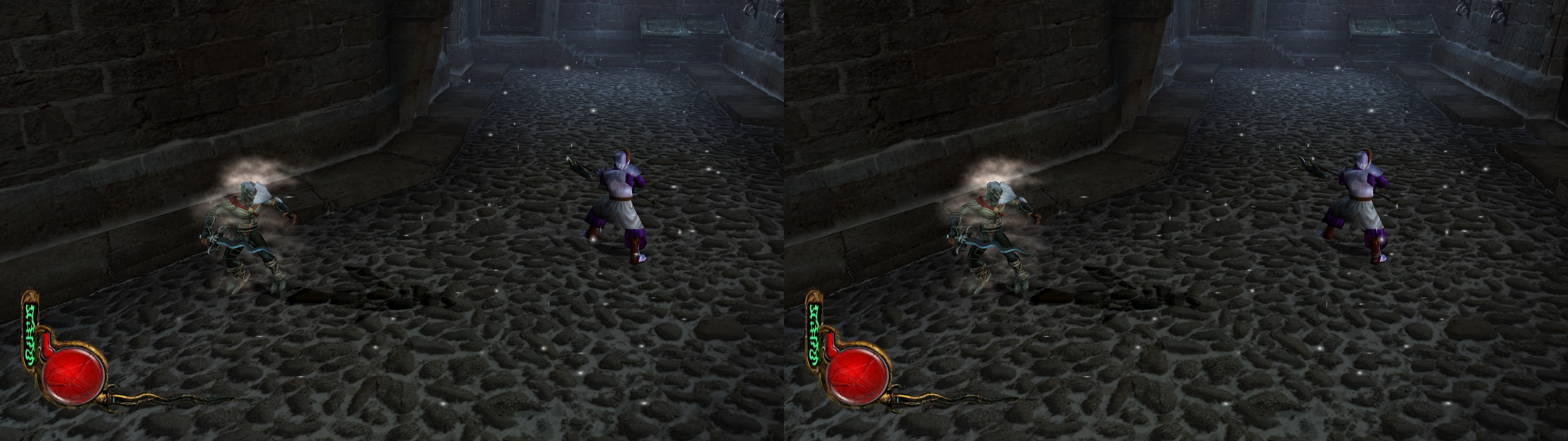
This is a guide to play Legacy of Kain: Defiance properly in 3D. The fix included here isn't necessary. It's just for convergence hotkeys.


This is a DX9 game that mostly only suffers from HUD stereoization problems (it goes out of the screen after certain convergence levels). This can be fixed by modifying the game profile in Nvidia Inspector. Here are the settings that you must use (in bolder font):


In text format, just in case the image disappears someday:

SettingValueComments
Profile nameLegacy of Kain: DefianceNot a setting, but just for your information.
StereoCutoff0x00000002Necessary to enable the following tweak.
StereoCutoffDepthNear0x430C0000This makes the HUD 2D, in collaboration with the previous setting. In some cutscenes, if something is too close to the camera, some geometry elements may become 2D. It's unavoidable.
StereoMemoEnabledNoJust to disable the green text information.
StereoProfileYesNecessary to use non default configurations.
StereoTextureEnable0x00000001The default value of 0x00000023 is fine too, but it will stereoize the render target associated with the sword attack (a transparency effect), which can't be fixed by normal means apparently.


IMPORTANT: disable Windows XP SP2 compatibility mode in the game "defiance.exe" file.

To use three convergence presets (F1, F2, F3, that can be overwritten with F7), use this fix and unzip it in the "Legacy of Kain Defiance" folder, where "defiance.exe" is. However, you'll surely want to use the 16:9 mod that also has a "d3d9.dll". To make both work at the same time, you'll need Ultimate ASI Loader used as "dsound.dll" instead of "dinput8.dll". Then rename the "d3d9.dll" from the aspect ratio mod to "d3d9.asi" and set your resolution in "sr3.ini".

I took the liberty of putting all these mods together in the same file. I don't take responsibility for how those mods may affect your game. Change the resolution in "sr3.ini" if you need it (it's 2560x1440 in my file).


If you are wondering why I didn't fix the HUD using shaders, it's because the game only has 3 vertex shaders, and none of them seemed to be the HUD nor the sword transparency effect, so my hands were tied.


If you liked the guide and want to contribute for more future fixes, you can donate to this PayPal account: masterotakusuko@gmail.com

Sunday, May 14, 2017

Alan Wake


Tested with version 1.06.18.1326

- Enable convergence changing in Nvidia Control panel
- Launch game
- Go to Options/Controls/FOV and set directly to 17 bars enabled (3 bars disabled)
- Set separation (via Ctrl+F3 and Ctrl+F4 by default) to enabled 12 bars (20% in value) - it's more than necessary for valuable 3d effect (it's seems to me that nvidia driver has wrong settings of separation levels for this game)
- Set desirable level of convergence via (Ctrl+F5 and Ctrl+F6 by default)

P.S. This version of game doesn't need helix fix - it's tweak guide