
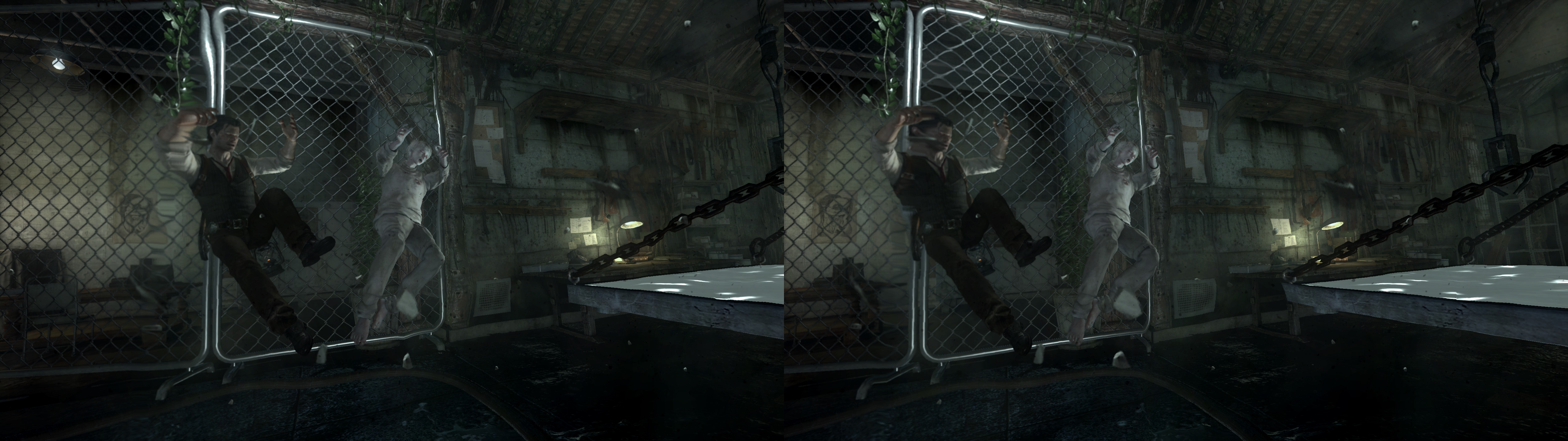
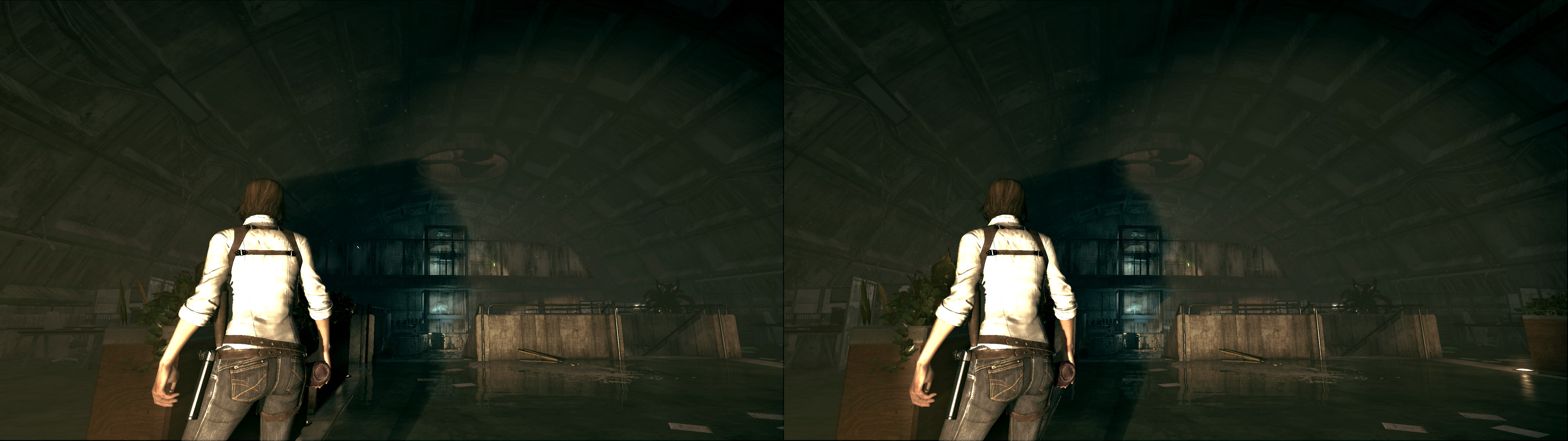


3D Vision and geo-11 fix for The Evil Within. Remade from scratch to fix remaining problems from the original fix by DHR (https://helixmod.blogspot.com/2016/08/the-evil-within-dx11.html). Credits to him for introducing me to some fixing methods.
Update (2023-10-20): added geo-11 fix. Autoconvergence configured and some HUD issues polished. Other corrections that I can't remember.
Fixed
- Shadows.
- Lighting.
- Decals.
- Light shafts.
- Volumetric lighting.
- Screen space reflections.
- Lighting clipping, mostly. Some may show up at high convergence values. A more proper way to fix that unintended effect requires shader partnering, and that kills performance, so I decided not to do it.
- Radial blur.
- Lighting clipping, mostly. Some may show up at high convergence values. A more proper way to fix that unintended effect requires shader partnering, and that kills performance, so I decided not to do it.
- Radial blur.
- Distortion effects.
- One eye particles.
- Realistic specular reflections.
- Water effects.
Installation
- First of all, don't use Windows 7. This fix makes launching it very easy compared to old methods by forcing flip model, something that was created for Windows 8 onwards. I tested this on Windows 10 and checked with other people that Windows 7 doesn't trigger 3D Vision. If you want to try the old method of launching the game on Windows 7, you're on your own.
- Realistic specular reflections.
- Water effects.
- Stereoized 2D geometry elements (rain, some smoke, particles...).
- Added dynamic crosshair and HUD.
Known issues
- Lighting clipping may be seen at high convergence. One more obvious consequence is that some trees in the early chapters show a black outline at convergence higher than zero.
Known issues
- There's a boss in the first and second DLC that creates lighting out of its head. It's supposed to be volumetric, but I didn't find a way to make it "float" in the air like the other volumetric lighting shader. So it remains sticking to surfaces like a normal fixed lighting shader. This effect also appears briefly for a light cone near the end of the second DLC, and is also used for the flashlight in the first and second DLC.
Installation
- First of all, don't use Windows 7. This fix makes launching it very easy compared to old methods by forcing flip model, something that was created for Windows 8 onwards. I tested this on Windows 10 and checked with other people that Windows 7 doesn't trigger 3D Vision. If you want to try the old method of launching the game on Windows 7, you're on your own.
- (geo-11, recommended, with build v0.6.182) Download this file and extract its contents in the "TheEvilWithin" folder, where "EvilWithin.exe" is. Remember to edit "d3dxdm.ini" to change your "direct_mode" to the output you need. For 3D Vision monitors, only "nvidia_dx11" works.
- (Older 3D Vision fix, mostly for people who just want the post processing toggles) Download this file and extract its contents in the "TheEvilWithin" folder, where "EvilWithin.exe" is.
- Run the game and let it overwrite the profile the first time.
- In the ingame options, choose fullscreen and choose the same resolution as you use in the desktop. They have to be the same or 3D Vision won't trigger.
Hotkeys (numbers aren't from the numpad)
- F1: convergence presets (0, 25, 35, 50, 75, 100). 50 by default, recommended for gameplay. I recommend 25 for cutscenes and 35 for the The Executioner DLC (first person mode). With shift+F1, you can cycle backwards. Autoconvergence is enabled by default so this key won't do anything if it's enabled.
- F2: HUD depth presets (0%, 20%, 40%, 60%, 80%, 100%). 0% depth by default, but overriden by dynamic HUD, which is enabled by default.
- F3: dynamic HUD toggle. Enabled by default. It puts the entire HUD (including mouse cursor) to the depth of what is at the center of the screen. If it's annoying for cutscene subtitles, just press this hotkey to use static HUD.
- F4: color filter toggle. Not disabled by default, because I recommend the original state of the game. This disables the color filter of the game, restoring the colors and contrast to unmodified values (more colorful). However, in many situations this lets you see in the dark when you shouldn't, and it can make some scenes duller (less bright).
- F5: depth of field toggle. Disabled by default because it's there for most of the game making it blurry.
- 0: vignette toggle. Disabled by default. I recommend leaving it disabled.
- 9: main lens flares presets. By default they are disabled because they are terribly annoying. With one press, they try to be at fully dynamic depth (using the dynamic crosshair code), but they have very few vertices so they wobble a lot. With a second press, they are at the depth of what is at the center of the screen (no wobbling, but more incorrect in general). With a third press, they are always at 100% depth (also incorrect in many situations). With a fourth press, they are disabled again. I recommend just leaving them disabled, even though they are sometimes used as some kind of fake lighting.
- Run the game and let it overwrite the profile the first time.
- In the ingame options, choose fullscreen and choose the same resolution as you use in the desktop. They have to be the same or 3D Vision won't trigger.
Hotkeys (numbers aren't from the numpad)
- F1: convergence presets (0, 25, 35, 50, 75, 100). 50 by default, recommended for gameplay. I recommend 25 for cutscenes and 35 for the The Executioner DLC (first person mode). With shift+F1, you can cycle backwards. Autoconvergence is enabled by default so this key won't do anything if it's enabled.
- F2: HUD depth presets (0%, 20%, 40%, 60%, 80%, 100%). 0% depth by default, but overriden by dynamic HUD, which is enabled by default.
- F3: dynamic HUD toggle. Enabled by default. It puts the entire HUD (including mouse cursor) to the depth of what is at the center of the screen. If it's annoying for cutscene subtitles, just press this hotkey to use static HUD.
- F4: color filter toggle. Not disabled by default, because I recommend the original state of the game. This disables the color filter of the game, restoring the colors and contrast to unmodified values (more colorful). However, in many situations this lets you see in the dark when you shouldn't, and it can make some scenes duller (less bright).
- F5: depth of field toggle. Disabled by default because it's there for most of the game making it blurry.
- 0: vignette toggle. Disabled by default. I recommend leaving it disabled.
- 9: main lens flares presets. By default they are disabled because they are terribly annoying. With one press, they try to be at fully dynamic depth (using the dynamic crosshair code), but they have very few vertices so they wobble a lot. With a second press, they are at the depth of what is at the center of the screen (no wobbling, but more incorrect in general). With a third press, they are always at 100% depth (also incorrect in many situations). With a fourth press, they are disabled again. I recommend just leaving them disabled, even though they are sometimes used as some kind of fake lighting.
Recommendations
- Use flawless widescreen to increase the FOV of the game. For me the default FOV was unplayable, and I was comfortable with the maximum FOV of the mod.
- Use flawless widescreen to increase the FOV of the game. For me the default FOV was unplayable, and I was comfortable with the maximum FOV of the mod.
- I recommend not using motion blur. It isn't broken, but I just don't like it.
- Don't force anisotropic filtering in the drivers. It will make textures shimmer.
- The "+com_skipIntroVideo 1" launch command (no quotes) skips some annoying intro videos at launch.
- If you use the "nvidia_dx11" mode in the geo-11 fix, try to not have a secondary monitor. It may interfere with the launching process and turn into a blinking black screen that never stops.
If you liked the fix and want to contribute for more future fixes, you can donate to this PayPal account: masterotakusuko@gmail.com

Great fix. But now I'm afraid to run the game. Seriously. I'm scared!
ReplyDeleteGoG version v1.0 (36732) windows 10 dont work when i use 1920 1280,
ReplyDeleteNot enough information to help you. 1920x1280, and not 1920x1080? Whatever it is, is it the same resolution you are using in your desktop?
DeleteThanks for the fix, but after it the card began to heat up a lot, before that it was 40-50 C at 60 fps, and now 50-80 C at 60 fps. Perhaps something needs to be disabled in the settings?
ReplyDeleteWin 10 i5 8600k 2070 Super
Most likely you are just seeing the extra load that running in 3D puts upon the GPU. For any given stereo picture, you need two images, one for each eye. So the 3D Vision and fixes runs the entire scene twice, once for each eye, so you can expect to have 2x the load on your GPU. 50-80c is not a problem for any video card.
DeleteIf you are concerned about it, and think it's something different from a prior fix, you can always experiment by commenting out different parts of the d3dx.ini.
DeleteI see, I was just surprised how a game from 2014 can heat the video card so much)
I've tried this fix using both drivers 452.22 and 425.31 (using Losti's excellent tool)... 3D is kicking in, but I'm getting a crazy flickering effect all over. Any ideas?
ReplyDeleteLanterns don't have lights at close range
ReplyDeleteWithout fix: https://i.ibb.co/wKq43Z7/Untitled2.png
With it (same lantern):
- https://i.ibb.co/bNDXmDH/Untitled.png
- https://i.ibb.co/wzpkmc5/Untitled3.png
Are some of you using Windows 11 b 22593? I'm not able to run the game in this build, previous builds were working. Ryzen 5 + RX580 8G
ReplyDeletedude you are a god, i am going to play through this entire game with post effects off. I hate post effects. This game has such brilliant colors!
ReplyDeleteVirusTotal marks geo11 and the old download as malicious
ReplyDeleteFalse positive from the virus checker. Some virus checkers simply mark anything with a dll as a virus, even though that's just how the OS works. This VirusTotal thing is just running 20 some virus checkers, and it's a near certainty that at least one of those will have the brain-dead idea that *any* dll is suspect.
DeleteWe'd recommend not using VirusTotal unless you really need that level of security. If you need that level of security, you probably don't want to be modding. Not everyone is as rigorous about their software as we are.
how can i fucking disable this stupid annoying black bars?
Deletehow i can stop seeing double screens?
ReplyDeleteI think the only way is by opening the "d3dxm.ini" file and changing the part where it says "direct_mode=sbs" and change to "direct_mode=nvidia_dx11" instead. I did this but I have a RTX 3060 on the newest driver and the game just shows a black screen then crashes pretty quick unfortunately. Hope we can get an update for this or a workaround of some sort. The motion blur in the regular game without this mod is atrociously garbage. I used this mod once on my old GTX 970 GPU and now I don't think I could go back to playing without it. Some of the cutscenes in this game are even ruined by this awful blur. Plz, update this one! This game is my favorite 3rd person horror!!! :D Thanks for your work anyways though, much appreciated.
DeleteYou might try to edit d3dx.ini and change the 'force_stereo=0'. That disables the geo-11 side and allows for a normal 3Dmigoto modding setup. If you are not actually using the 3D generated, this might work, because the shader edits will still be run.
DeleteYou don't want to set it to nvidia_dx11, that requires an older driver that won't run on a 3060. You can use Ctrl-T to disable SBS output. It still does the work involved in generating 3D images, but will show a single screen instead.
Simpler and more to the point though- if you are trying to disable a specific effect, it's easier to just use a straight 3Dmigoto install, use the hunting mechanism to find the hash code for the shader you want, and mark it as 'handling=skip' in the d3dx.ini file. Google around for this, lots of examples on the web.
I appreciate your quick reply!! I was just messing around again more last night and realized you can disable motion blur at least in the Epic version of the game I forget if the Steam version has it or not. Epic version apparently is the best version out there from what I've gathered. DXVK (vulkan) seems to improve performance by perhaps 5 FPS not much since I am running it in 4k on my 3060 with all settings up. Varies from 35FPS(worst I've seen yet in big open area) and average like 50-60 FPS in the regular areas. I am going to see how much the difference is with this mod out of curiosity probably will be a tad worse I will assume but I' rather check and see because I love to toggle the Color filter toggle on this as I've beat this game so many times so it's interesting to see this game without the filter. I also prefer the grayish filter they have in this game though, so I usually leave it on the default setting but it's cool to see!
DeleteForgot to mention your suggestion of changing 'force_stereo=2' to 'force_stereo=0' worked great. I also did not need to press Ctrl+T in-game even though sbs is set as the stereo mode. So interesting, and just from the main menu I see color filter toggles, just a quick check for anyone who is trying to get this working for now. Cheers! :D
DeleteThe "force_stereo=0" works but the hotkeys do nothing for me
DeleteWhich hot keys do you need? I presume your not looking for the awesome stereoscopic 3D?
DeleteIf you are looking to mod specific shaders, you should use the basic 3Dmigoto from GitHub instead. That is preconfigured with hunting=1 so you use hunting UI to find shader hashes.
There's a problem that the color filter changes when aiming with the sniper rifle.
ReplyDeleteThank you for creating the patch.
ReplyDeleteI have a question I'd like to ask.
If I simply install it and don't use 3D Vision, will it render the same graphics as the original?
In other words, are the shaderfixes files and the ‘fixed’ list in the description only activated when using 3D Vision?
(Older 3D Vision fix, mostly for people who just want the post processing toggles)
Simply copying this version of the files into the exe folder magically solved this game's terrible stuttering issue.
Moreover, even without copying the shaderfixes folder, I didn't notice any significant problems.
You can possibly delete the ShaderFixes folder and have it still work. Depends upon why having the mod helps the stutter. If you use the older 3D Vision fix, that is just straight 3Dmigoto. It will load and patch shaders specified in ShaderFixes even if 3D is not enabled. If won't hurt to have them load and replace the shaders, and it's theoretically possible that the shader mods are fixing the stutter.
DeleteIf you don't notice any problems without ShaderFixes, then it's most likely something to do with us wrapping all the DX11 calls. Hard to know for sure, but 3Dmigoto can run without ShaderFixes without any problems.
Thank you very much for your reply.
DeleteSo, in theory, if I use only the shadercache without applying shaderfixes, will the display remain the original, unmodified image, or do I need to edit the INI file included with the older fix?
(The package already contains a pre-made shadercache folder)
I’m sorry for the trouble and for my lack of knowledge.
Worth experimenting to see what a minimal setup might be that will work for you. The absolute bare minimum to load the mod tool are the d3d11.dll and nvapi64.dll. The other files are not required, including the d3dx.ini, as the code will use defaults.
DeleteIf you just wanted to try a clean 3Dmigoto with no 3D fix included, you can download the version from github.
Probably you would want to also delete the ShaderCache, because if it exists it will be used.
It's entirely possible that our mods to the shaders themselves are what helps. If you are not showing 3D images, there won't generally be a visible difference, but there are a lot of variables. Alternatively, if you don't notice anything bad, then it probably is irrelevant whether the shaders are modified or not.
It really depends upon what piece of the chain helps with the stutters, and the only way to find out will be to experiment. I'd start with just the dlls, then try raw 3Dmigoto if that doesn't work.
After checking various things, it seems the file identical to the d3d11.dll included in the old version doesn't exist on the 3dmigoto GitHub.
DeleteIt likely wasn't included in the release and was a separately built version at that time.
Copying the two DLL files from the release versions on the 3dmigoto GitHub did not resolve the stuttering issue, but the older version file fixed it properly (it even worked without copying the shadercache folder, generating its own shadercache files).
Combining the old dll files with the default ini file didn't generate shadercache files, but it seems to eliminate the stuttering issue.
Unfortunately, when I built and used the latest version from GitHub, the game wouldn't run (swapchain error?).
It's probably difficult to pinpoint exactly what changes were made and how the issue was resolved.
Thank you again for your response.
Looks like the version included with the older 3D Vision fix is 1.3.16, which is our long standing release version from 2018. There are newer builds available via Github Actions for 1.4.x versions, but these are not proper releases because of limited testing. I've recently updated the master branch to allow VS2022 builds, but these builds will be kind of speculative. For production use, we still recommend 1.3.16 unless there is some other requirement. I'm not sure about that swapchain error, this is part of why 1.4.x is speculative. (most likely answer is mismatch between new version and old d3dx.ini. There are some launch/hook/wrap settings that changed.)
DeleteThere is an even older version of the fix from DHR on a different blog page, but I assume you are not using that.
The geo-11 version here is missing build versions because of errors from the author, so we can't tell which are which. But I also assume this is not what you are using or need.
This is the direct link to 1.3.16: https://github.com/bo3b/3Dmigoto/releases/download/1.3.16/3Dmigoto-1.3.16.zip
Although the version number of d3d11.dll in the second fix version is 1.3.16,
Deleteits file size differs from the 1.3.16 version on GitHub.
Using that GitHub version did not resolve the stuttering issue.
I'm unsure whether this is due to differences in the build method or other modifications being applied.
To summarize:
The 2016-08 fix mitigates stuttering when using the included ini file, though it's not perfect.
Replacing the ini file with another did not work.
The second version (2021-07) resolves stuttering issues whether using the fix dll's included ini or 3dmigoto's default ini.
The latest new version (2023-10) also resolves the stuttering issue when using the included ini file (modified to force_stereo=0). Changing the ini file to the default 3dmigoto file did not resolve the stuttering.
I did not copy the shadercache or shaderfixes folders in any case.
Maybe I was worrying unnecessarily because of the game's terrible stuttering problem.
Since the problem is solved, I guess the answer is just to enjoy it as is.
Once again, thank you so much for your response, and I'm sorry for the trouble!
OK, worth knowing. That change in binary with same version is very, very bad. We try hard to avoid that sort of terrible dev work. I confirm the same result. I can't pinpoint anything here that introduced that, or where that version came from. It's not an official build, and the last-mod date is 2021/7/24, which doesn't correlate to any code changes in the repo and doesn't match anything with geo-11 time frame. It's not a geo-11 variant, too early, and too small. (geo-11 will always appear as 1.3.16 because of the broken versioning)
DeleteI have no idea where that version came from, and it's pretty concerning. Maybe @masterotaku has an idea?
Most likely answer is that somebody made a custom build and didn't version it properly either. It could have been built using a different toolset, which would change the size. Or possibly built mid stream with some added code changes, but not released as an official build. 2021/7/24 is midstream, but doesn't have anything obvious that might matter here. Maybe a custom build specifically for stutter? Dunno.
Exactly... The good news is that the latest patch also fixes the stuttering issue!
DeleteI’ll keep a backup of the 2021-07 version just in case.
Thank you so much for developing and sharing the 3D Vision patch here.
It’s given me a great experience across many games.
I’m truly grateful, and I wish you all the best!
Is it possible to launch game in none 3D mode. I only want to disable annoying vignette and lens flares effects.
ReplyDeleteYou can set the force_stereo=0 in the d3dx.ini file, and that will put it back to 3Dmigoto mode. The 3Dmigoto base is a fully featured DX11 modding tool.
DeletePlz can someone help me, I've tried everything and I know I had it working before on my 3060 using this mod. I tried everything so far to get it to function with DXVK like beforehand I even tried forcestereo=0 yet somehow while using dxvk with these .dll files it seems like the d3d11.dll is giving me this error in event viewer I'll paste it below. I also already have memory integrity off and disable CFG in Win Defender for EvilWithin.exe and also set an exclusion for that entire folder so idfk what's happening rn ugh.
ReplyDeleteFaulting application name: EvilWithin.exe, version: 1.0.0.0, time stamp: 0x64669184
Faulting module name: d3d11.dll, version: 10.0.26100.8521, time stamp: 0xcc89c01e
Exception code: 0xc0000005
Fault offset: 0x0000000000038a2b
Faulting process id: 0x8E8
Faulting application start time: 0x1DD006503CC2743
Faulting application path: S:\Games\The Evil Within\EvilWithin.exe
Faulting module path: C:\WINDOWS\system32\d3d11.dll
Report Id: 22b395d0-1b9c-451e-ba7a-b6d9d18ebb93
Faulting package full name:
Faulting package-relative application ID:
Oh i m realizing now that I am using the newest DXVK version and i have the DXVK .dll named "d3d11_real.dll" but not sure if that is correct file name anymore if running with this mod. I've tried all versions so far at least on this thread including the more simpler toggle only version, and also the 1.3.16 version linked above but all have the same error in Event Viewer. :/
DeleteI'm wondering should I bother trying older versions of DXVK to test?? I'm just stumped why it seems like im getting that 0x00000005 access violation error..... The game instantly crashes ofc as soon as I click the shortcut in my taskbar. I've tried closing RTSS, and MSI, etc. I'm genuinally just stumped how I even had this working before but I';m really beating myself up not at least taking a screenshot of my old game folder for safe keeping. God dammit man I've spent like at least 1.5 hrs already trynsa get this to work im bouta just say screw it for now I have to accept defeat..... I can play only with DXVK for now with the newest version. Also I do keep the dxgi.dll from DXVK as well within my game folder, not sure if I need to bother renaming that file. I think tomorrow or later I will try older DXVK versions as im not sure what else I cana even rule out that is causing this specific issue.
Oh yeah idk if this helps but here's the d3d11 log from the 1.3.16 version:
*** D3D11 DLL successfully initialized. ***
Trying to load original_d3d11.dll
Hooked_LoadLibraryExW switching to original dll: original_d3d11.dll to C:\WINDOWS\system32\d3d11.dll.
*** Hooked_CreateDXGIFactory called with riid: IDXGIFactory
*** IDXGIFactory creating hook for CreateSwapChain.
Successfully installed IDXGIFactory->CreateSwapChain hook.
Upcast QueryInterface(IDXGIFactory2) returned result = 0, factory = 000000004364B000
*** IDXGIFactory2 creating hooks for CreateSwapChain variants.
Successfully installed IDXGIFactory2->CreateSwapChainForHwnd hook.
Successfully installed IDXGIFactory2->CreateSwapChainForCoreWindow hook.
Successfully installed IDXGIFactory2->CreateSwapChainForComposition hook.
CreateDXGIFactory returned factory = 000000004364B000, result = 0
*** D3D11CreateDeviceAndSwapChain called with
pAdapter = 0000000000000000
Flags = 0
pFeatureLevels = 0xb000
FeatureLevels = 3
pSwapChainDesc = 00000000065E2FB0
ppSwapChain = 00007FF72D687388
ppDevice = 00007FF72D686D70
pFeatureLevel = 0x261ece52
ppImmediateContext = 00007FF72D6873A8
-- UnhookableCreateDevice called
->Feature level allowed through unchanged: 0xb000
*** Hooked_CreateDXGIFactory2 called with rii (CRASHED RIGHT HERE AFTER the rii part)
Also again sorry for yapping but additionally ofc, I am running or trying to run this I should say, with the Epic version of The Evil Within. Like I stg 2 years ago I had this working no problems and now nothing is working. Man im so disappointed rn lol. I hate all these extra effects in this game and this was an amazing damned tool.
DeleteThat's my bad guys I did figure out I forgot even set my proxy .dll to the name of my d3d11.dll from DXVA so maybe that is also palying a part in my issues trying to get this to launch. If it is still instantly closing whenever I try and launch it tomorrow whenever I wake up I will update this but anyways thanks in advance if anyone managed to read this. Hoping for it to just work now tomorrow LOL. Anyways night for now, and apologies for the spam if anyone is subscribed to these comments like I am haha.
DeleteWhat's all this even about? Why are you using DXVK? Run the game normally, in its native DX11 mode. That's what the fix expects.
Delete