Showing posts sorted by relevance for query dgvoodoo2. Sort by date Show all posts

Thursday, August 11, 2022

Tron 2.0 Geo-11 3D fix. DX9 - DX11 dgVooDoo2


 Greetings Programs,


I have a fun fix here that works pretty good out the box. I had ran a mod called Killer 
App Mod for Tron 2.0. I had found it worked well when running the dgVooDoo 2 and in a Katanga window with a Reverb G2 VR Headset.


Now this should work with other 3D solutions but I have only tested the Katanga_VR Mode and a G2 VR Headset. but with it being converted to DX11 it should work on most all solutions I would hope..


But before we get started you can get the Game on Steam I think also GOG.. The Killer App Mod can be found by going to this Guide page on Steam:

https://steamcommunity.com/sharedfiles/filedetails/?id=325088441


The guide on Killer App Mod site cover most of the issues you could run into but I am not going to cover that here, just read the guides and mod website for help. but if you do have a question I will try and help.


Now, All I did was install Tron2.0 then downloaded the patch and then the killer app mod and installed them. I will supply the shortcut I used for Katanga, I use Helixvision so I am not sure if you need that or not to get the Katanga app??


But Helixvision is only like 5bucks and well worth the cost. Not sure if you get 3DFM if that comes with the Unity App Katanga??


But without further ado here is the Katanga Shortcut target line dont forget you may need to purchase Helixvision, and if you put the game into a different location you will need to change the shortcuts Target line to where you installed. here is an example of the target line:

C:\Games\Steam\steamapps\common\HelixVision\Tools\Katanga\katanga.exe --game-path C:\Program Files (x86)\Buena Vista Interactive\Tron 2.0\Tron.exe --launch-type DX11Exe

So you would insert your Patch and install where Tron 2.0 is like above from here C:\Program Files (x86)...... or if you just want to make your own Shortcut from Bo3b Himself..


https://www.mtbs3d.com/phpBB/viewtopic.php?t=26326


Also, here is a link to the dgVooDoo 2 website:


http://dege.freeweb.hu/dgVoodoo2/dgVoodoo2/


here is a link to the Geo 11 fix which includes dgVooDoo2 if you need to manually install it. I will also include the folder for Helixvision.  


https://nephilim3d.s3.amazonaws.com/Tron+2.0+Geo-11+3D+fix.7z


here is the Helixvision folder. just put it inside the fixes folder where you installed Steam/Helixvision at:


https://nephilim3d.s3.amazonaws.com/1254.7z


Well it is a fun game and I am gonna try some MP hope to see you on the inside. if you have any questions let me know..


Donations welcome jlaf2112 AT Gmail Dot Com


Thank you

Nephilim


Tuesday, July 21, 2020

Might and Magic VIII: Day of the Destroyer

Use dgVoodoo to convert the game to DX11:

  • Download and unzip dgVoodoo to any folder you choose

  • From “MS/x86” folders copy “D3D8.dll”, D3D9.dll”, “D3DImm.dll” and “Ddraw.dll” and place them to the game’s installation folder where “MM8.exe” is located

  • Launch dgVoodoo and Set Config folder/Running instance: “folder where your game’s exe file is located”

GENERAL tab:

  • Output API: Direct3D 11 (feature level 11.0)

  • Adapter(s) to use/enable: "Your graphics card"

  • Full Screen Output: \\.\DISPLAY 1

  • enable "Full Screen"

  • enable "Enumerate refresh rates"

  • Leave everything else as they are

DIRECTX tab:

  • Videocard: dgVoodoo Virtual Accelerated Card

  • VRAM: set to highest available (amount depends on dgVoodoo version)

  • Resolution: set to your monitor's highest as long as it's 119Hz

  • Filtering and Antialiasing as you prefer (I use “Force anisotropic 16x” and Antialiasing: “Off”).

  • Leave everything else as they are

In dgVoodoo settings be sure NOT to enable "Fast video memory access", it will crash the game.


Make shortcut of MM8.exe to your desktop.

Right click on MM8-shortcut and select “Properties”. Then select “Compatibility” tab and make followin selections:

- Windows 8 compatibility mode, disable full-screen optimisations and run as administrator.


In Nvidia Profile Inspector create new profile and add MM8.exe to it.

Set "StereoProfile" to "Yes"

Then set “ StereoTextureEnable” to “0x00000001 COMMON_STEREO_TEXTURE_ENABLED”


Go to game-folder and run MM7Setup.exe. In Might and Magic Configuration Utility that launches, select “Full Screen”, enable “Hardware Accelerated 3D” and from drop-down menu select “dgVoodoo DirectX Wrapper”

Exit MM Configuration Utility and launch game from the desktop shortcut you made earlier.


dgVoodoo: http://dege.freeweb.hu/dgVoodoo2/dgVoodoo2.html

Nvidia Profile Inspector 2.13: https://www.filecroco.com/download-nvidia-inspector/


Sunday, June 14, 2026

Star Wars Episode I: Racer


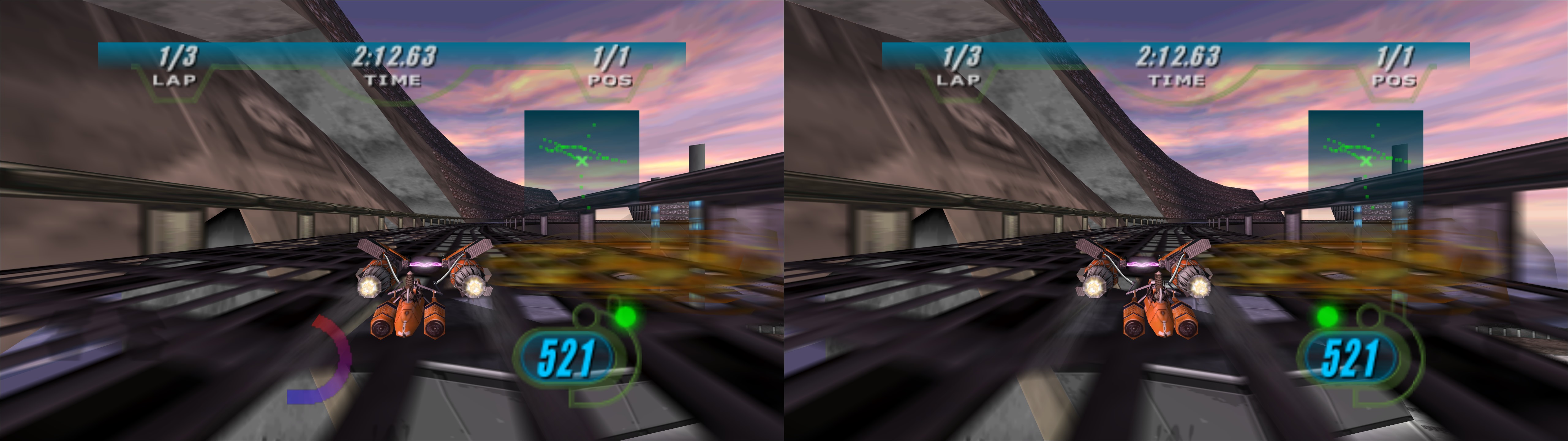
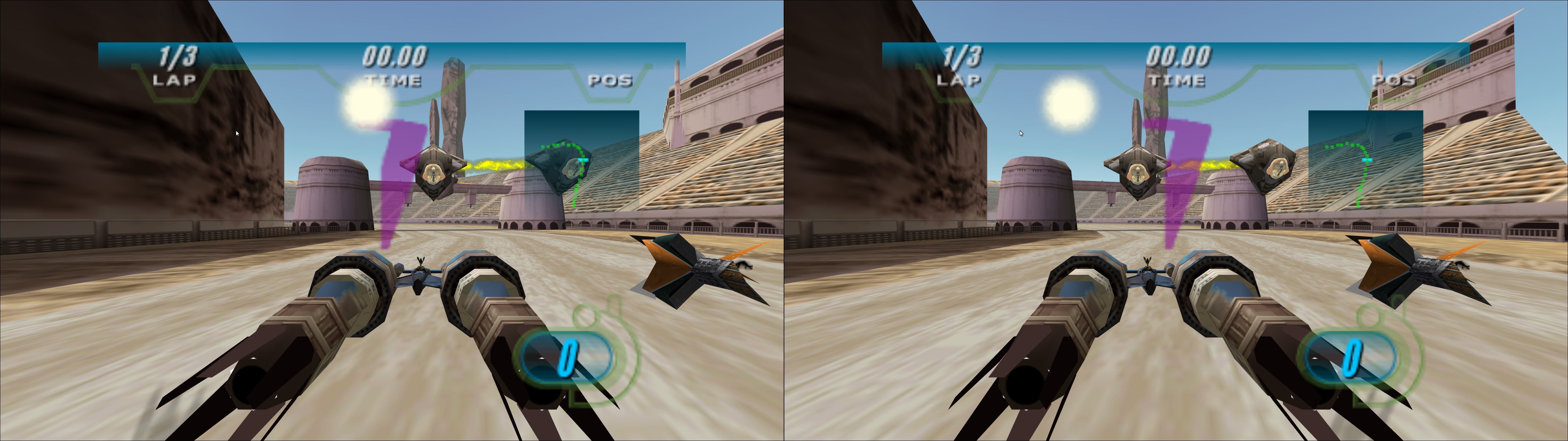
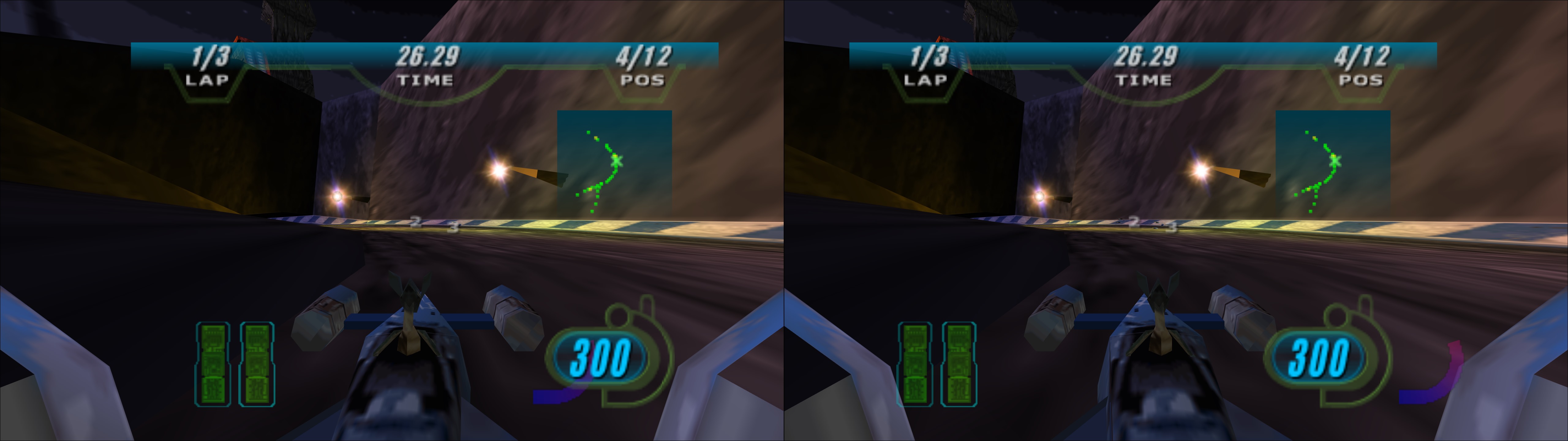
3D Vision and geo-11 fix for Star Wars Episode I: Racer (GOG release). It includes an aspect ratio mod that I did via shaders. The fix needs dgVoodoo to convert the game to DX11. There are some unavoidable compromises with the fix related to the HUD and geometry.


Update (2026-06-15): added geo-11 fix. Read the differences below.


NEW GEO-11 FIX INFORMATION HERE


Differences from the 3D Vision fix:
  • The fix now requires dgVoodoo 2.87.2 (latest one at this date). At some point it won't be available from the official source, so I backed it up in a github project.
  • Default convergence is now 6 instead of 3. I think it was too low. You can change the dm_convergence value in d3dxm.ini.
  • Three convergence presets instead of 5. They are for 3, 6, and 12 convergence.
  • The "4" hotkey now has 3 presets. By default, the HUD will be fully correct. Some rare track textures may have a bit of a weird depth unless you press 4 twice to make the HUD fly away with convergence.
  • upscaling = 1 is enabled by default in d3dxdm.ini. I found it to be the most stable.
  • I disabled the HUD toggle hotkey, because it has a risk of disabling some geometry.


-------------------------------------------------------------------

OLD 3D VISION FIX INFORMATION BELOW


Fixed
- Most of the HUD at fixed depth (see the notes after the installation steps).
- Fixed "layer" was making 3D broken at high convergence levels.
- Sun and lens flares now at full depth.


Remaining issues
- Shadows are unfixed. They seem to not have depth information, and even if they had it, they still share their texture hashes with other geometry (I tried to do a manual approximation and it backfired).
- By default I have left the boost meter at a non fixed depth to not compromise geometry. You can probably still see it with one eye somewhere on the screen. If you want to fix the meter, open "d3dx.ini" and uncomment the "[TextureOverrideHUD3]" line and the two lines below it.
- Some slight geometry accuracies (affecting a few textures) had to be made to fix the HUD. See the notes below the installation steps.
- WARNING: trying to enable SBS/TAB/interlaced modes will crash the game, even if you configure the mode beforehand. You have to play with normal 3D Vision unless you find (and hopefully share) a way to make it work.


Installation
- First configure the game resolution the normal way. I recommend the default 640x480 for better CPU performance and full size videos.
- Download this file and extract its contents in the "STAR WARS Racer" folder, where "SWEP1RCR.EXE" is.
- Download the latest dgVoodoo 2 release or WIP version (at least 2.55.1 version) here: http://dege.freeweb.hu/dgVoodoo2/dgVoodoo2.html
- From inside its "MS" folder, copy "D3D8.dll", "D3DImm.dll" and "DDraw.dll" into the game folder. The GOG release of this game comes with a "ddraw.dll" that makes the game DX9, so rename it to something else if you don't want to lose it.
- Open "dgVoodooCpl.exe" and configure it like this, for example, tuning the resolution and some other settings to your liking:


- It's important that you enable "Fast video memory access" to remove a big CPU bottleneck.
- Open "dgVoodoo.conf" and set "DepthBuffersBitDepth" to "force32bit" to have the best geometry accuracy, avoiding the annoying "z fighting" problem.
- Boot the game directly from "SWEP1RCR.EXE", making sure you have admin rights to save the game profile changes it makes the first time. If I launch it from GOG Galaxy it doesn't trigger 3D Vision.


HUD and geometry compromises
The problem of this game is that it has just a handful of texture hashes shared between geometry, shadows, lens flares and HUD. Even with a very narrow depth check (to see if it's exactly 0, for the HUD), it can still affect geometry. I tried to give the game the best balance between these things, but you can change how it's configured (experienced users only).

Open "d3dx.ini" and go to line 996, right before "[TextureOverrideHUD1]". Take a look at those blocks of text until line 1047. By default, I made the game unstereoize (i.e. put at screen depth) everything that has zero depth. Blocks that contain "filter_index=2" will avoid this and in some cases affect the HUD (other times it has no drawbacks). The block I have with "filter_index=1" is the lens flares and sun fix, putting the effect at full depth.

For example, if you want to fix the boost meter, comment the "[TextureOverrideHUD3]" block. But some geometry will have wrong depth.

For a quick general change to disable all HUD fixes in real time (but make the HUD convergence dependant), press the "4" hotkey.


Hotkeys (numbers are not from the numpad)
- 1: five convergence presets .
- 2: HUD depth presets. Screen depth by default, and tweaked for the HUD inside races.
- 3: HUD toggle. Not disabled by default. Only HUD elements with fixed depth will be affected. Sun and lens flares (and some HUD affected by it) won't be disabled.
- 4: press this to disable all HUD tweaks, making geometry perfect (except the always unfixed shadows) at the cost of probably not seeing the HUD if you use enough convergence.
- 5: aspect ratio mod presets (4:3, 16:9, 2560x1080 AR, 3440x1440 AR, 48:9). By default 4:3 to 16:9 conversion.
- 6: Y axis FOV unlock toggle. Use it alongside the "5" key to configure the zoom level. By default it assumes you are using a 16:9 resolution.
- 7: Y axis FOV multiplier, to use alongside the "5" and "6" keys. Use it to change aspect ratio at the same time as using zoom.


Aspect ratio mod
Use the 5, 6 and 7 hotkeys to change settings in real time.

In "d3dx.ini", line 94, there is a line that says "w=0.75". That's the X axis FOV. By default I assume you are using a 16:9 resolution, so "0.75" will unstretch the game, as you see in the screenshots above. The HUD is centered and unstretched too. The drawback of this mod is that there is some geometry culling, especially if you use higher than 16:9 aspect ratio. Also, the HUD will change its size accordingly. Extreme example of the max level of zoom I allow: screenshot.


Recommended settings
- In the "Video Settings" launcher (from GOG Galaxy or the "-v" command in a shortcut), use 640x480 resolution.
- Someone here posted better settings that can't be accessed ingame:
"Go to:
x:\GOG Folder\STAR WARS Racer\data\config\current
Open video.cfg with Notepad++ or similar and change the settings to enable max settings:

VIDEO REFLECTIONS=ON
VIDEO ZEFFECTS=ON
VIDEO DYNAMIC_LIGHTING=ON
VIDEO VSYNC=ON
VIDEO LENSFLARE=ON
VIDEO ENGINEEXHAUST=ON
VIDEO TEXTURE_RES=3
VIDEO MODEL_DETAIL=3
VIDEO DRAWDISTANCE=3 "
- Use Nvidia Profile Inspector to force 8xSGSSAA or 4xSGSSAA if your GPU can handle it. It will reduce texture shimmering a lot.


If you liked the fix and want to contribute for more future fixes, you can donate to this PayPal account: masterotakusuko@gmail.com

Tuesday, July 21, 2020

Might and Magic VII: For Blood and Honor

Use dgVoodoo to convert the game to DX11:

  • Download and unzip dgVoodoo to any folder you choose

  • From “MS/x86” folders copy “D3D8.dll”, D3D9.dll”, “D3DImm.dll” and “Ddraw.dll” and place them to the game’s installation folder where “MM7.exe” is located

  • Launch dgVoodoo and Set Config folder/Running instance: “folder where your game’s exe file is located”

GENERAL tab:

  • Output API: Direct3D 11 (feature level 11.0)

  • Adapter(s) to use/enable: "Your graphics card"

  • Full Screen Output: \\.\DISPLAY 1

  • enable "Full Screen"

  • enable "Enumerate refresh rates"

  • Leave everything else as they are

DIRECTX tab:

  • Videocard: dgVoodoo Virtual Accelerated Card

  • VRAM: set to highest available (amount depends on dgVoodoo version)

  • Resolution: set to your monitor's highest as long as it's 119Hz

  • Filtering and Antialiasing as you prefer (I use “Force anisotropic 16x” and Antialiasing: “Off”).

  • Leave everything else as they are

  • Press “Apply” and the “OK”

  • Close dgVoodoo

In dgVoodoo settings be sure NOT to enable "Fast video memory access", it will crash the game.


Make shortcut of MM7.exe to your desktop.

Right click on MM7-shortcut and select “Properties”. Then select “Compatibility” tab and make followin selections:

- Windows 8 compatibility mode, disable full-screen optimisations and run as administrator.


In Nvidia Profile Inspector create new profile and add MM7.exe to it.

Set "StereoProfile" to "Yes"

Then set “ StereoTextureEnable” to “0x00000001 COMMON_STEREO_TEXTURE_ENABLED”


Go to game-folder and run MM7Setup.exe. In Might and Magic Configuration Utility that launches, select “Full Screen”, enable “Hardware Accelerated 3D” and from drop-down menu select “dgVoodoo DirectX Wrapper”

Exit MM Configuration Utility and launch game from the desktop shortcut you made earlier.


dgVoodoo: http://dege.freeweb.hu/dgVoodoo2/dgVoodoo2.html

Nvidia Profile Inspector 2.13: https://www.filecroco.com/download-nvidia-inspector/


Saturday, November 18, 2017

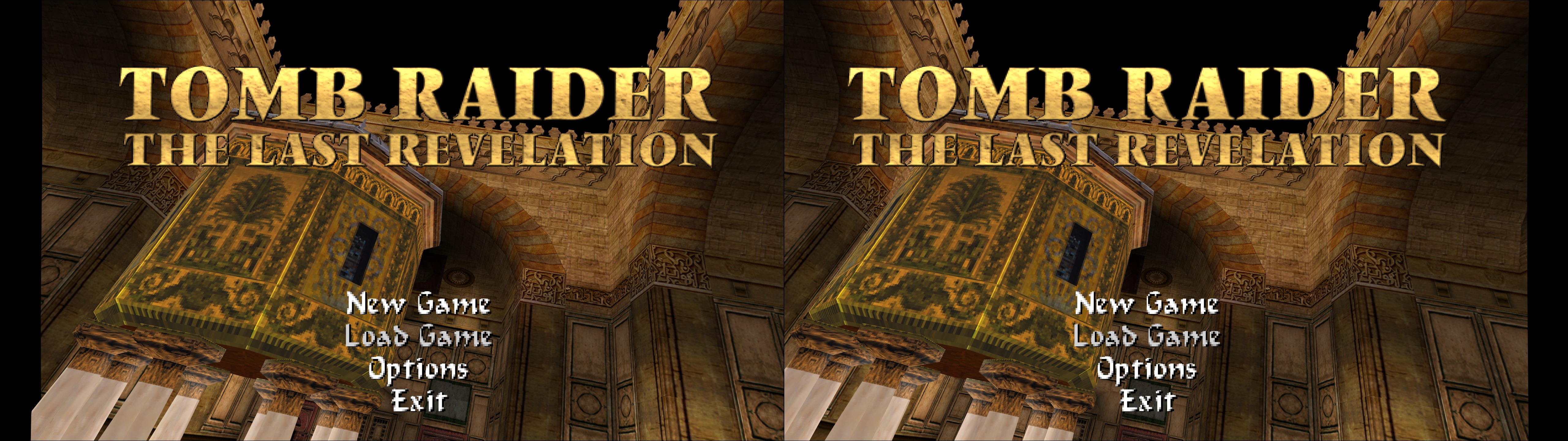
Tomb Raider 2-3-4-5


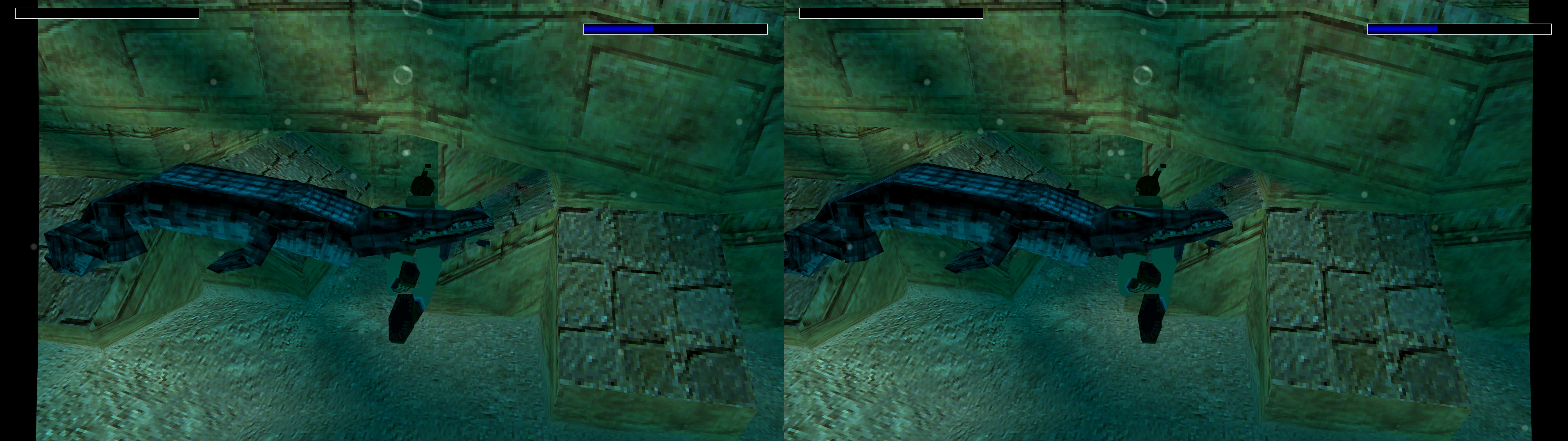
3D Vision fixes for the classic Tomb Raider games (2, 3, The Last Revelation, Chronicles). The fix needs dgVoodoo to convert the games into DX11.


Fixed
- HUD depth is now fixed and customizable (TR 2-3-4-5).
- Improved sun glare (TR 4).
- Added a black bars toggle hotkey (TR 4).


Known issues
- You will have to disable FMVs in TR 2. They play fine, but after they end, the game will crash. The other games are fine.
- Very distant (black) geometry in TR 2 will be at full depth instead of proper depth (not too annoying). The other games are fine.
- Except for TR 3 (and partially TR 5), the skybox/background is at a fairly close depth. I couldn't find a way to fix it without breaking other geometry.
- NEVER close Tomb Raider 3 via alt+F4, because it will delete your game configuration and break the graphics until you configure it again. This isn't a bug of the fix, but you should be aware of it. It's safe in the other games.
- There is some flickering at the left and right borders of the screen, where the game doesn't want to draw geometry. Use your frustum hotkey (ctrl+F11 by default) until the borders are cropped.


Installation
- Download this file for TR 2-3-5 or this file for TR 4 and extract its contents in the root folder of the corresponding game.

- Partial path to the game executables in order, corresponding to the GOG versions:

"Tomb Raider 2\Tomb2.exe"
"Tomb Raider 3\tomb3.exe"
"Tomb Raider 4\tomb4.exe"
"Tomb Raider 5\PCTomb5.exe"

- TR 2 will probably not boot on Windows 10 (in my case,  the process was stuck). Use this if it happens: https://pcgamingwiki.com/wiki/Tomb_Raider_II#GOG.com_version_not_running_on_Windows_10
- At this point, if you want to play them in widescreen you'll have to patch the game exe with this, which will work with TR 2-3-4-5 (also use the config below): https://community.pcgamingwiki.com/files/file/394-tomb-raider-234-widescreen-patch/


- Download the latest dgVoodoo 2 release or WIP version here: http://dege.freeweb.hu/dgVoodoo2/dgVoodoo2.html
- From inside its "MS" folder, copy "D3D8.dll", "D3DImm.dll" and "DDraw.dll" into the game folder.
- Open "dgVoodooCpl.exe" and configure it like this, for example, tuning the resolution and some other settings to your liking (use 16xAF if you don't want a pixelated look):


- To configure the graphics of the game, make a shortcut to the game ".exe" and make it end with " -setup" after the path (no quotes, and used outside the quotes of the path to the ".exe"). The resolution used "ingame" will be used as a zoom level and won't affect the real resolution. 1280x720 is a good balance, and higher than 1920x1200 may make the game crash.
- I recommend forcing SGSSAA in the game profile, especially if you use "Force point sampled" for textures. These games aren't demanding.
- Boot the game and play.


Hotkeys
- l: six convergence presets.
- o: HUD depth presets. Screen depth by default.
- k: black bars toggle for cutscenes. TR 4 exclusive.


If you liked the fix and want to contribute for more future fixes, you can donate to this PayPal account: masterotakusuko@gmail.com

Thursday, November 23, 2017

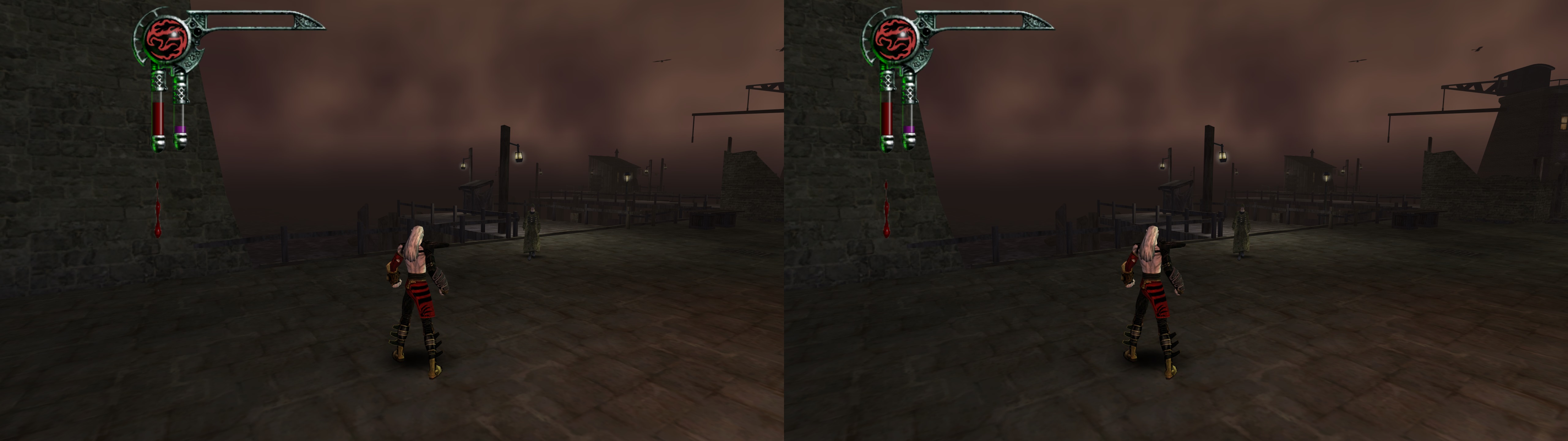
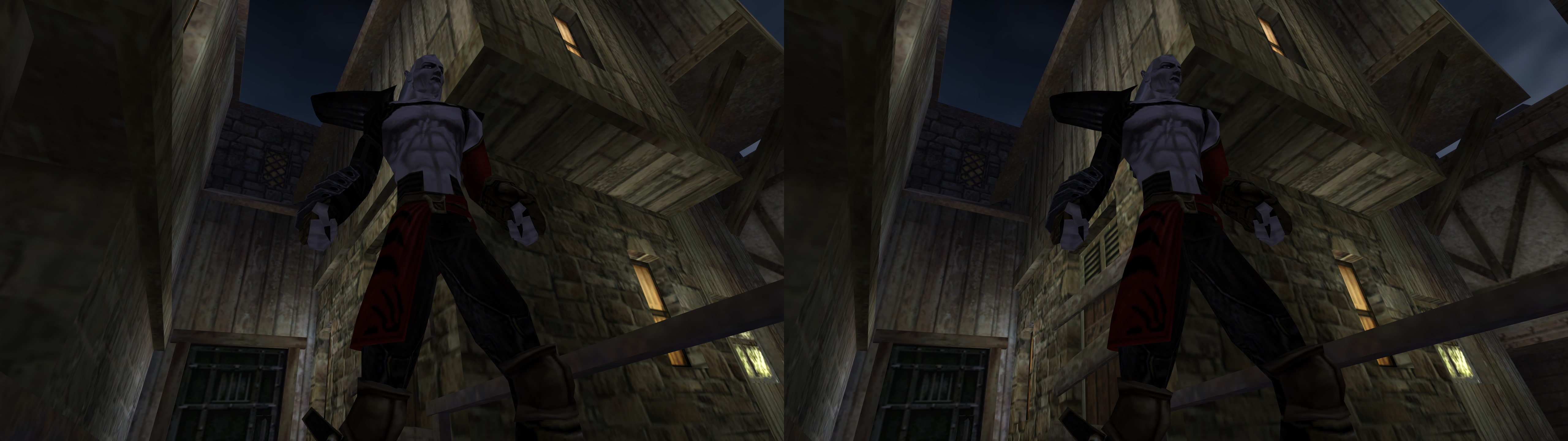
Legacy of Kain: Blood Omen 2


3D Vision fix for Legacy of Kain: Blood Omen 2. It includes an aspect ratio mod for triple monitor, to use on top of the 16:9 game exe that already exists. The fix needs dgVoodoo to convert DX8 into DX11.


Fixed
- HUD fixed, unstretched, and at customizable depth.
- Fixed "layer" was making 3D broken at normal convergence levels.
- Fixed skybox.


Installation
- Download this file and extract its contents in the "Legacy of Kain Blood Omen 2" folder, where "bo2.exe" is.
- I recommend using the 16:9 mod here, because by default I unstretch the HUD and videos: http://www.wsgf.org/dr/blood-omen-2-legacy-kain
- The F6 aspect ratio mod is made only for 3x 16:9 monitors this time (thre isn't too much culling and there are only ".exe" mods up to 21:9).
- Download the latest dgVoodoo 2 release or WIP version here: http://dege.freeweb.hu/dgVoodoo2/dgVoodoo2.html
- From inside its "MS" folder, copy "D3D8.dll", "D3DImm.dll" and "DDraw.dll" into the game folder.
- Open "dgVoodooCpl.exe" and configure it like this, for example, tuning the resolution and some other settings to your liking:


- Boot the game.


Hotkeys
- F2: six convergence presets .
- F3: HUD depth presets. Screen depth by default.
- F4: HUD toggle. Not disabled by default.
- F5: black bars toggle for cutscenes. Bars not disabled by default.
- F6: aspect ratio mod for triple monitor. Assuming base 16:9 mod is used.


HUD stretching
- In "d3dx.ini", there is a line that says "w2=0.75". That's the HUD unstretching from 4:3 to 16:9. Change it to "w2=1" if you want stretched HUD. The triple monitor hotkey mod will make it unstretched for that aspect ratio automatically.


If you liked the fix and want to contribute for more future fixes, you can donate to this PayPal account: masterotakusuko@gmail.com

Saturday, March 17, 2018

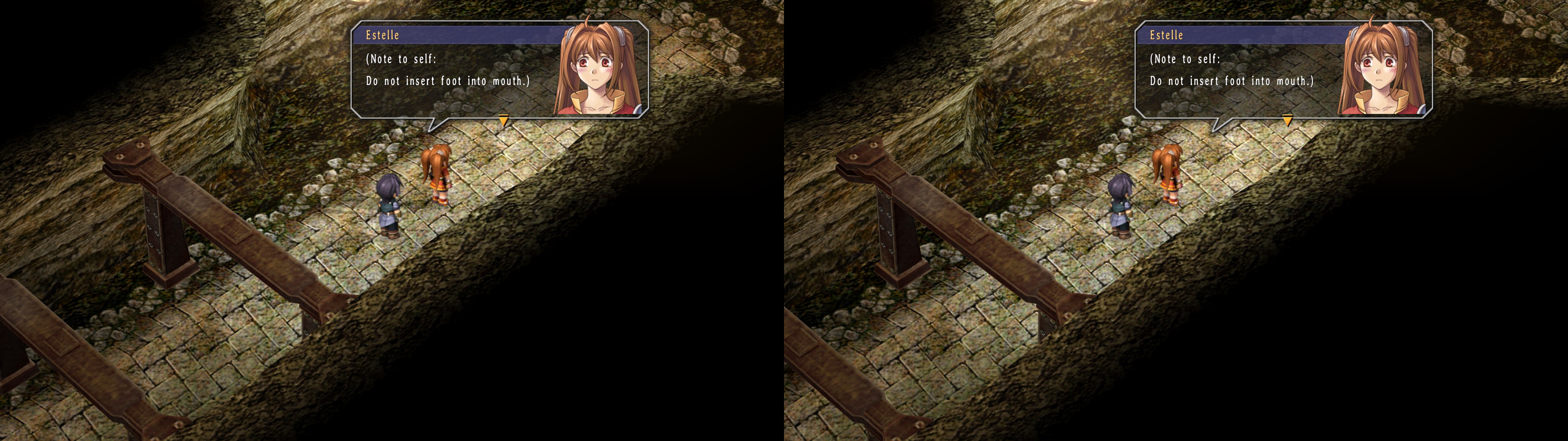
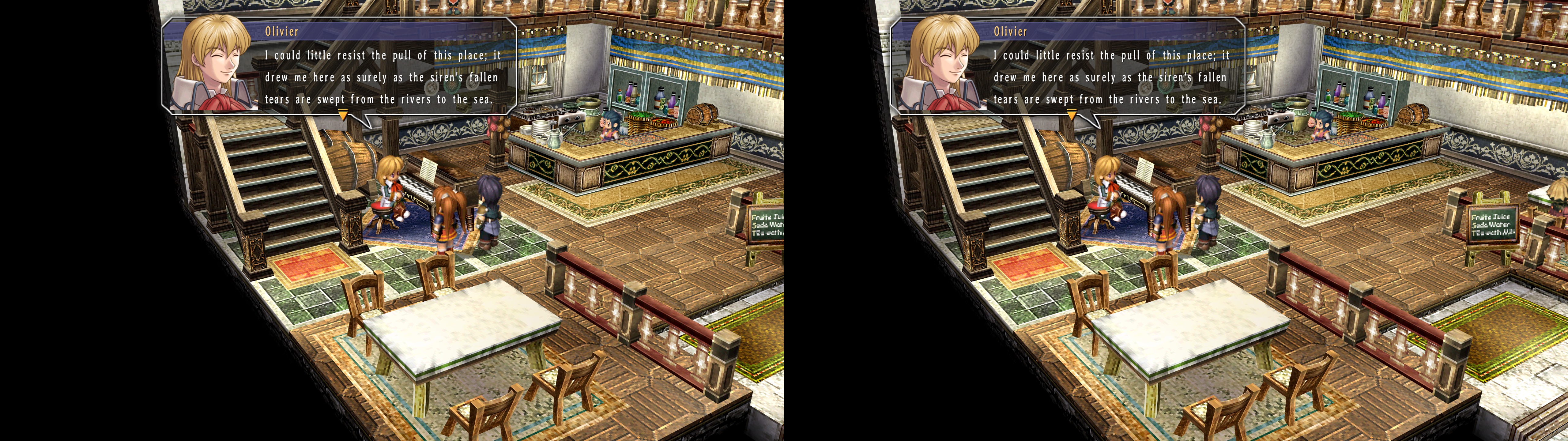
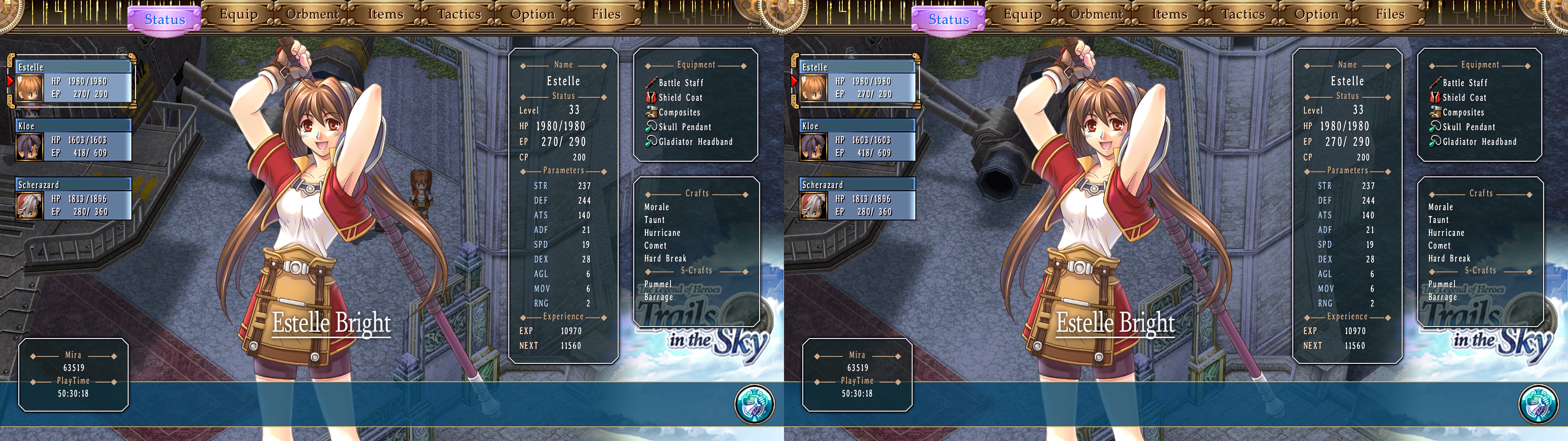
The Legend of Heroes: Trails in the Sky (FC - SC - the 3rd)


3D Vision fixes for The Legend of Heroes: Trails in the Sky series (all three games). The fix needs dgVoodoo to convert DX8 into DX11, instead of using the DX9 version which has some issues.

Update (2018-03-17): updated 3Dmigoto to version 1.3.6. All three fixes updated with the knowledge I got with Cold Steel 2 to completely fix HUD problems when it's at depth (regarding its background image).

Update (2018-01-17): updated 3Dmigoto to version 1.2.69, fixed geometry elements being affected by HUD depth, and added fixes for the other two games. All in one post because installation instructions are the same.

Update (2017-12-09): updated 3Dmigoto to version 1.2.67, which has better CPU performance. No other changes.

Important warning: dgVoodoo causes video movies (logo, opening and ending, for example) to not play. Instead the game will show a skippable black screen, so it's easy to identify. Use the DX9 version of the games for those moments.


Fixed
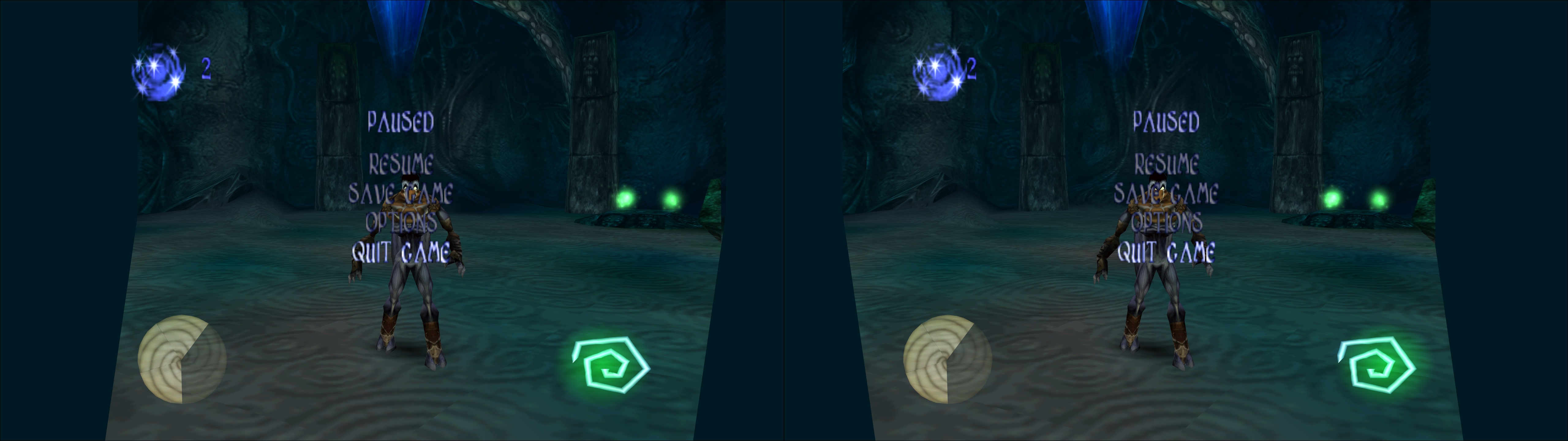
- Stereoized picture in pause menus.
- Some elements that were wrongfully in 2D in DX9 are in 3D in DX11.
- One haloing effect in TitS the 3rd, that at least appears at the start of the game.


Known issues
- In the second game, casino minigames will display only in one eye, and also portraits of fish you get with the rod.


Fix files
- Trails in the Sky First Chapter
- Trails in the Sky Second Chapter
- Trails in the Sky the 3rd


Installation
- Download one of the fixes above and extract its contents in the folder called

"The Legend of Heroes - Trails in the Sky", where "ed6_win.exe" is, or
"The Legend of Heroes - Trails in the Sky Second Chapter", where "ed6_win2.exe" is, or
"The Legend of Heroes - Trails in the Sky the 3rd", where "ed6_win3.exe" is.

- Download the latest dgVoodoo 2 release or WIP version here: http://dege.freeweb.hu/dgVoodoo2/dgVoodoo2.html
- From inside its "MS" folder, copy "D3D8.dll", "D3DImm.dll" and "DDraw.dll" into the game folder.
- Open "dgVoodooCpl.exe" and configure it like this (different path for each game), for example, tuning the resolution and some other settings to your liking (I use "Force point sampled" texture filtering to get a more retro look):


- Currently, Steam and GOG Galaxy boot the DX9 version of the game by default. To change that, rename "Config_DX9.exe" / "Config2_DX9.exe" / "Config3_DX9.exe" to something else and rename "Config.exe" / "Config2.exe" / "Config3.exe" to "Config_DX9.exe" / "Config2_DX9.exe" / "Config3_DX9.exe" (numbers 2 and 3 are for the second and third game). This way, you playtime and achievements will be tracked.
- Then, configure the game like this but for your resolution or the graphics settings you want:


- Next, I recommend using RTSS to limit the fps to 60, because otherwise the game will stutter. The game has perfect movement and animations to 62.5 and 125 fps. At 60fps, there will be some slight judder, but forcing 3D Vision at 125Hz is a bit annoying and has worse image quality results even if it's 100% smooth, at least on 1440p G-Sync/ULMB monitors, because they don't use Lightboost at that refresh rate (only ULMB or no strobing).
- If you play the GOG version using Galaxy, make sure the in-game overlay is disabled.
- Boot the game and play.


Hotkeys
- F1 or XB_RIGHT_THUMB: five convergence presets.
- F2 or XB_LEFT_THUMB: HUD depth presets.
- F3: Y axis variable HUD depth presets (tilting).
- F4: HUD toggle.
- F5: black bars toggle (for cutscenes and end of battles). Zero drawbacks in the first game, and it will disable "fade to black" transitions in the second and third game (you'll see what's behind from the beginning, when you're not supposed to see it).


If you liked the fix and want to contribute for more future fixes, you can donate to this PayPal account: masterotakusuko@gmail.com

Sunday, November 19, 2017

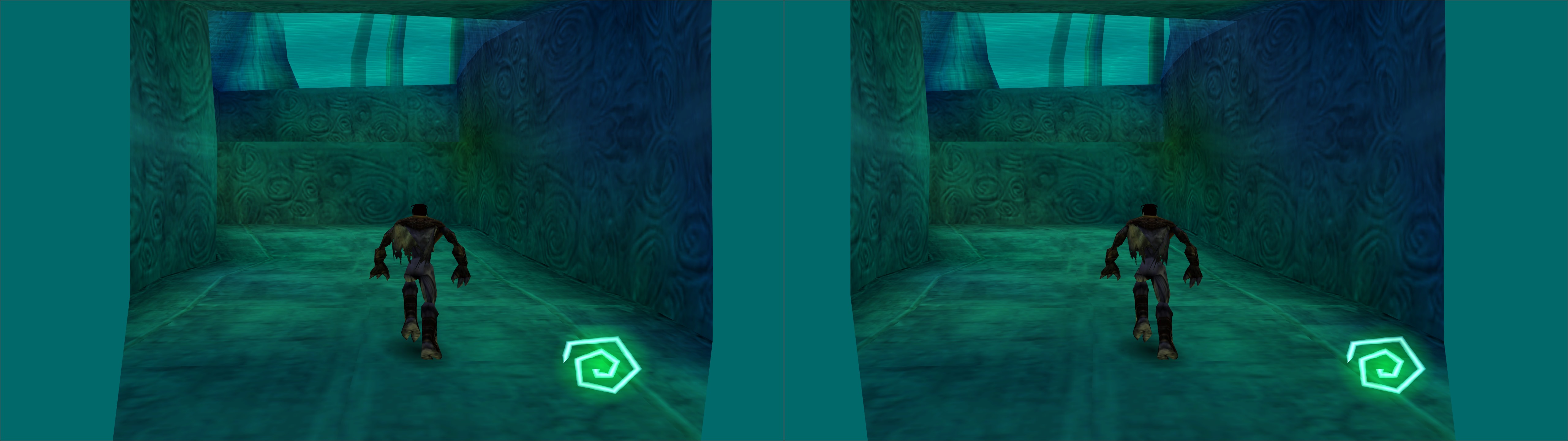
Legacy of Kain: Soul Reaver


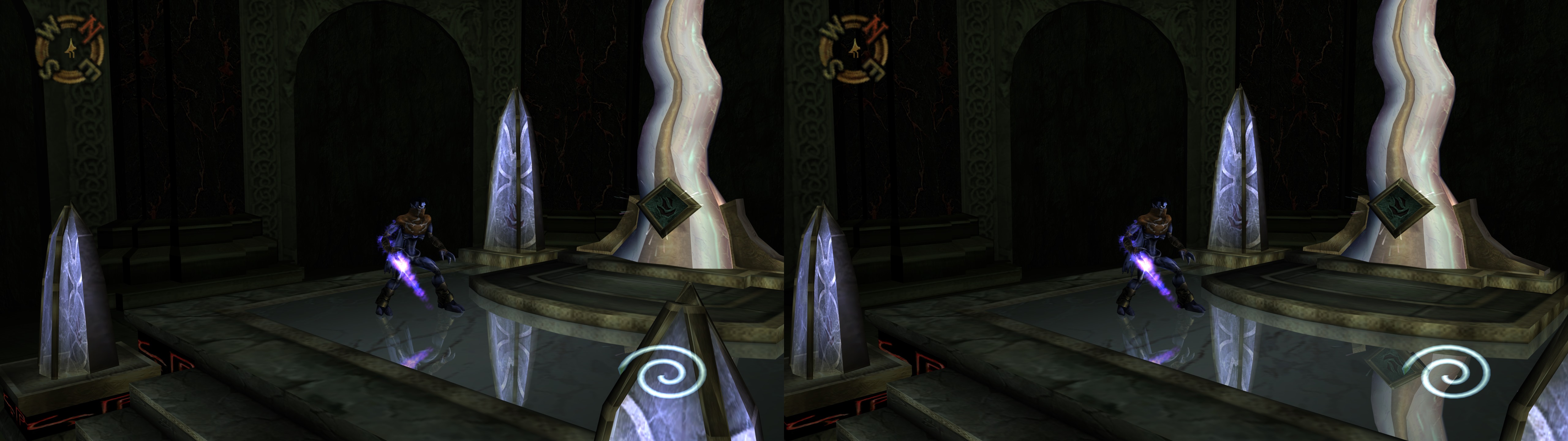
3D Vision fix for Legacy of Kain: Soul Reaver. It includes somewhat useful aspect ratio mod. The fix needs dgVoodoo to convert DX7 into DX11.

Small update (2017-11-22): I've changed the way I alter the aspect ratio for the main menu, and also for dgVoodoo WIP 37.

Update (2017-11-20): I've updated the fix. A fog layer was missing a fix, so the fix now includes that. The download link is the same. I'll keep testing the game as I play.


Fixed
- HUD fixed and at customizable depth.
- Fixed "layer" was making 3D broken at normal convergence levels.


Known issues (not caused by the fix and not related to 3D)
- If you use SRHook to be able to play at >30fps, the game will skip all prerendered cutscenes.
- There isn't any true (Hor+) widescreen mod. Mine enables the extra blank space to be used by geometry that would otherwise be outside of the 4:3 area in the view of one eye, or if you use extremely high convergence.


Installation
- Download this file and extract its contents in the "Legacy of Kain Soul Reaver" folder, where "kain2.exe" is.
- Unzip the SRHook mod in the same folder if you want to play at more than 30fps (beware of the videos bug). I recommend limiting the fps to something higher than 60, to avoid some stuttering.
- Check the properties of "kain2.exe" and disable Windows XP (Service Pack 2) compatibility.


- Download the latest dgVoodoo 2 release or WIP version here: http://dege.freeweb.hu/dgVoodoo2/dgVoodoo2.html
- From inside its "MS" folder, copy "D3D8.dll", "D3DImm.dll" and "DDraw.dll" into the game folder.
- Open "dgVoodooCpl.exe" and configure it like this, for example, tuning the resolution and some other settings to your liking:


- According to the dgVoodoo page, you may need the Winplay DLL patch if you experience some crashes (I think I dodn't need it. But I tried it and the game worked with it too): http://dege.fw.hu/Patches/Patches.html
- Boot the game. The graphics and sound configuration will appear. Use a 4:3 resolution like this if you want to use my widescreen mod:


- dgVoodoo will override that low resolution with your real one, and my aspect ratio mod will unstretch the game geometry, HUD and menus. F4 changes the aspect ratio in real time, but check "d3dx.ini", above the "w=0.75" line, to see the instructions. If you use an ingame 16:9 resolution AND use SRHook, the game will use a Vert- widescreen mode on top of my mod. Set "w=1" in "d3dx.ini" if you want to use the SRHook widescreen method.
- I recommend using SGSSAA in the game profile for non demanding games like this one.


Hotkeys
- F2: five convergence presets.
- F3: HUD depth presets. Screen depth by default. Some elements will have different depth than others.
- F4: aspect ratio presets. The default one is 16:9. The order is: 4:3, 16:9, AR for 2560x1080, AR for 3440x1440, and 48:9.
- F5: black bars toggle for cutscenes. Bars not disabled by default. Warning:  It will also disable your life bar.


If you liked the fix and want to contribute for more future fixes, you can donate to this PayPal account: masterotakusuko@gmail.com

Legacy of Kain: Soul Reaver 2


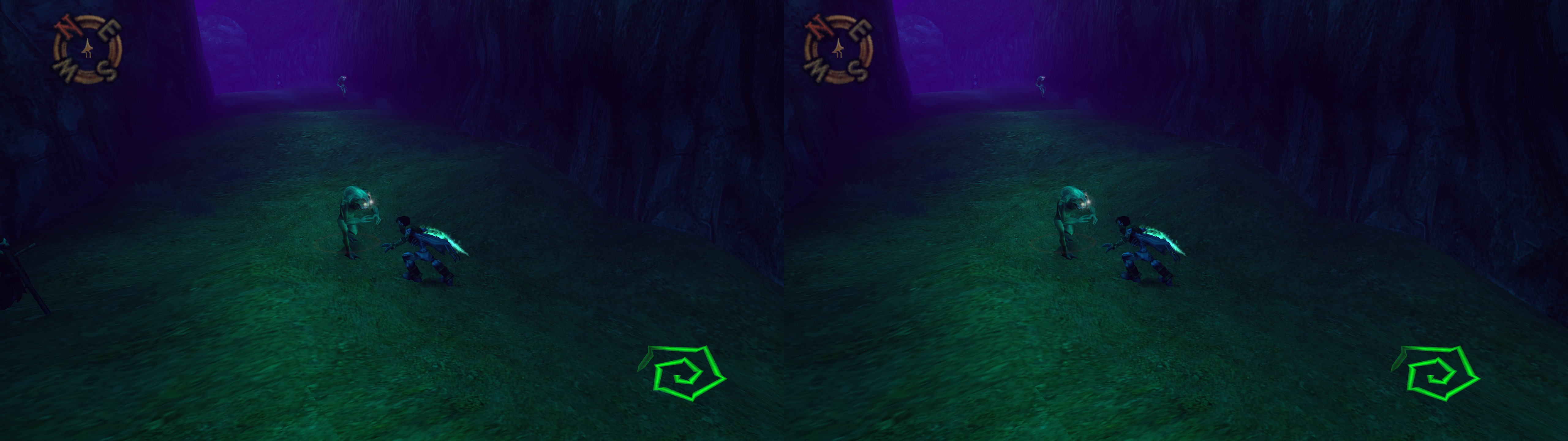
3D Vision fix for Legacy of Kain: Soul Reaver 2. It includes an aspect ratio mod, but there's a better method that I'll explain. The fix needs dgVoodoo to convert DX8 into DX11.


Fixed
- HUD fixed and at customizable depth.
- Fixed "layer" was making 3D broken at normal convergence levels.
- Changed the default frustum setting in the game profile. It was causing stretching issues.


Known issues
- I tried to unstretch prerendered cutscenes, but that corrupted the HUD graphics (even without modifying the aspect ratio).


Installation
- Download this file and extract its contents in the "Legacy of Kain Soul Reaver 2" folder, where "sr2.exe" is.
- This time my F4 aspect ratio mod is not used by default. If you want to play in good 16:9 (with no clipping/culling), get the aspect ratio mod by nemesis2000. Rename its "d3d8.dll" to "d3d8.asi", copy the files to the game folder, and also place there the Ultimate ASI Loader (32 bit version) dll as "dsound.dll" (renamed from "dinput8.dll"). Open "sr2.ini" and write your native resolution. I also use "widescreen = 1" there, but it's your choice to make.
- Download the latest dgVoodoo 2 release or WIP version here: http://dege.freeweb.hu/dgVoodoo2/dgVoodoo2.html
- From inside its "MS" folder, copy "D3D8.dll", "D3DImm.dll" and "DDraw.dll" into the game folder.
- Open "dgVoodooCpl.exe" and configure it like this, for example, tuning the resolution and some other settings to your liking:


- Boot the game. There is a resolution selector ingame, but I think it doesn't matter (I chose my native resolution this time).
- dgVoodoo will override that resolution 
- I recommend using SGSSAA in the game profile ("Santa Ride! 2" profile, lol), because there is still some aliasing with MSAA and there is a lack of mipmaps.


Hotkeys
- F2: nine convergence presets (cutscenes really need the low ones, but gameplay needs very high convergence. That's why I made so many).
- F3: HUD depth presets. Screen depth by default. Some elements will have different depth than others.
- F4: aspect ratio presets. Not used by default. The order is: 4:3, 16:9, AR for 2560x1080, AR for 3440x1440, and 48:9. Numbers calculated assuming you aren't using the other widescreen mod.
- F5: black bars toggle for cutscenes. Bars not disabled by default.


If you liked the fix and want to contribute for more future fixes, you can donate to this PayPal account: masterotakusuko@gmail.com

Monday, November 13, 2017

Hitman: Codename 47


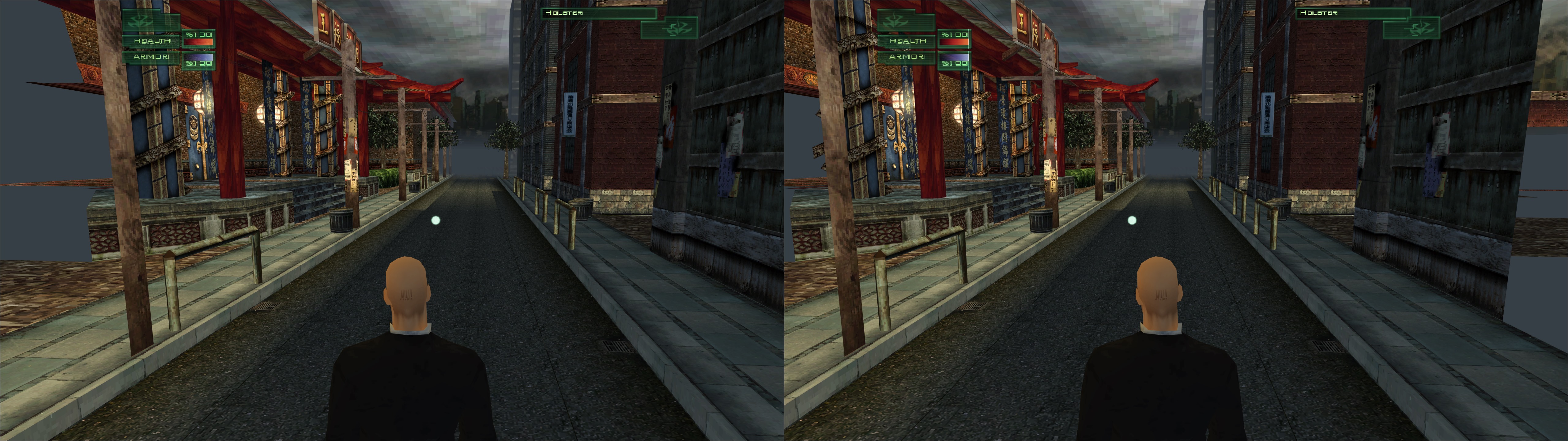
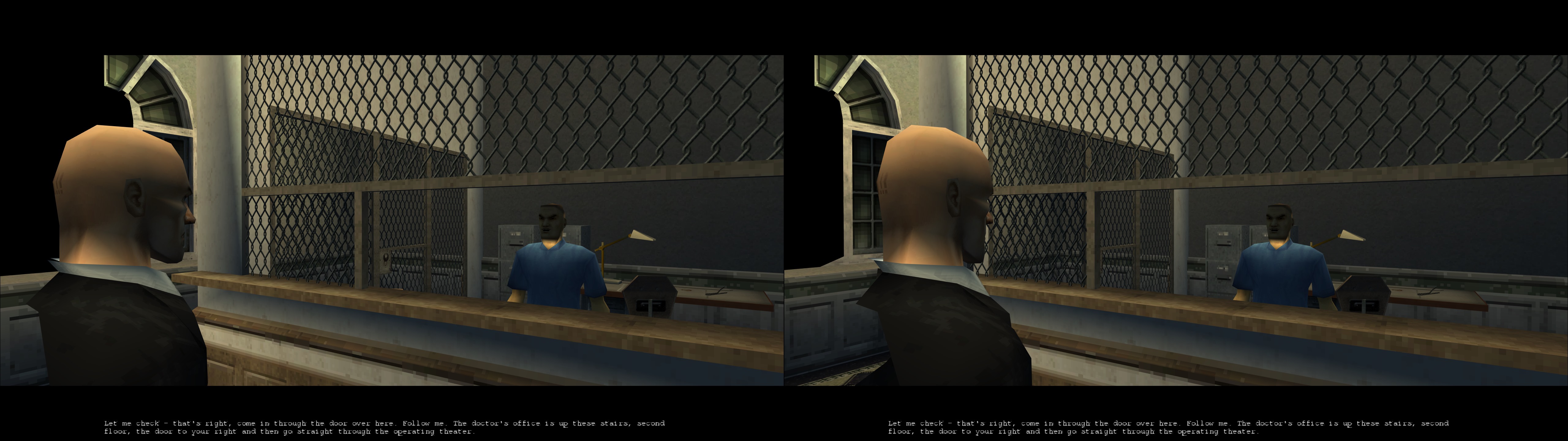
3D Vision fix for Hitman: Codename 47. It includes a Hor+ aspect ratio mod (up to triple monitor, but customizable for custom aspect ratio too. It's done by shaders) which is affected by culling. The fix needs dgVoodoo to convert DX7 into DX11.

UPDATE: I've updated the fix today (2017-11-17) to filter the HUD better and avoid breaking other effects at a close camera distance. I've also made a hotkey ("i") to more or less fix geometry in the Traditions of the Trade mission.

Fixed
- A "layer" that made the game not be useable at almost anything other than 0-1 convergence.
- Skybox.
- Distant backgrounds.
- Distant fog-covered elements.
- HUD elements and subtitles.
- Crosshair.


Known issues
- In the "Traditions of the Trade" mission, for some reason the developers chose to use the distant elements pixel shader for CLOSE elements and geometry, breaking the fix I made for them. But it's only outside of the hotel, which is a small area. The rest of the game is perfect or very close to perfect. Use the "i" hotkey here.
- This game suffers from clipping/culling at the sides if you play in aspect ratio wider than 4:3, unless you use widescreen in a Vert- way.


Installation
- Download this file and extract its contents in the "Hitman Codename 47" folder, where "hitman.exe" is.
- Download the latest dgVoodoo 2 release or WIP version here: http://dege.freeweb.hu/dgVoodoo2/dgVoodoo2.html
- You need this exact dgVoodoo version: http://www.vogonsdrivers.com/wrappers/files/Glide/Direct3D/dgVoodoo%202/D3D11/dgVoodooWIP37.zip
- From inside its "MS" folder, copy "D3D8.dll", "D3DImm.dll" and "DDraw.dll" into the game folder.
- Open "dgVoodooCpl.exe" and configure it like this, for example, tuning the resolution and some other settings to your liking (I use "Force point sampled" texture filtering to get a more retro look):


- In "Hitman.ini" (in the root folder of the game), use the following configuration, for example:

Include Setup\Locale.zip
//DrawDll Render3DFX.dll
DrawDll RenderD3D.dll
//DrawDll RenderOpenGL.dll
SoundDll Sound.dll
ScriptDll GSC.dll
LocaleDLL Locale.dll
Resolution 1024x768
Anisotropy 2
AntiAlias
DisableLight
ColorDepth 32
ShadowDetail 2
TextureResolution 0

Even if it says 1024x768 there, that will only control HUD scaling and not the internal resolution. Lower resolutions like 640x480 or 800x600 will have a bigger HUD. I recommend using only those three.

- Using that internal resolution and not any other widescreen trick, the game will be proper 16:9 thanks to the fix. F4 changes the aspect ratio in real time, but check "d3dx.ini", above the "w=0.75" line, to see the instructions.
- Boot the game and play. The main menu will be hard to use if you are at a high convergence. It won't hurt using it in 2D temporarily.


Hotkeys
- p: four convergence presets.
- F3: HUD depth presets. Screen depth by default. The crosshair uses them completely, from screen depth to max depth, but the rest of the HUD will move less into depth.
- F4: aspect ratio presets. The default one is 16:9. The order is: 4:3, 16:9, AR for 2560x1080, AR for 3440x1440, and 48:9.
- i: more or less geometry fix for Traditions of the Trade. Don't use it in other missions.


Alternative widescreen mode
- If you prefer using a Vert- type of widescreen to avoid culling, at the cost of a lower FOV, open "Hitman.ini", use your own resolution, like "Resolution 2560x1440", and add these two lines:

Window
StartUpperPos 0,0

After that, open "d3dx.ini" and change "w=0.75" to "w=1", because you won't need the aspect ratio mod.


Recommendations
- The game isn't demanding at all, so it's a good idea to force SGSSAA in its Nvidia profile. I use 8xMSAA + 8xSGSSAA, which fixes texture shimmering when using point sampled filtering in dgVoodoo.


If you liked the fix and want to contribute for more future fixes, you can donate to this PayPal account: masterotakusuko@gmail.com

Tuesday, August 28, 2018

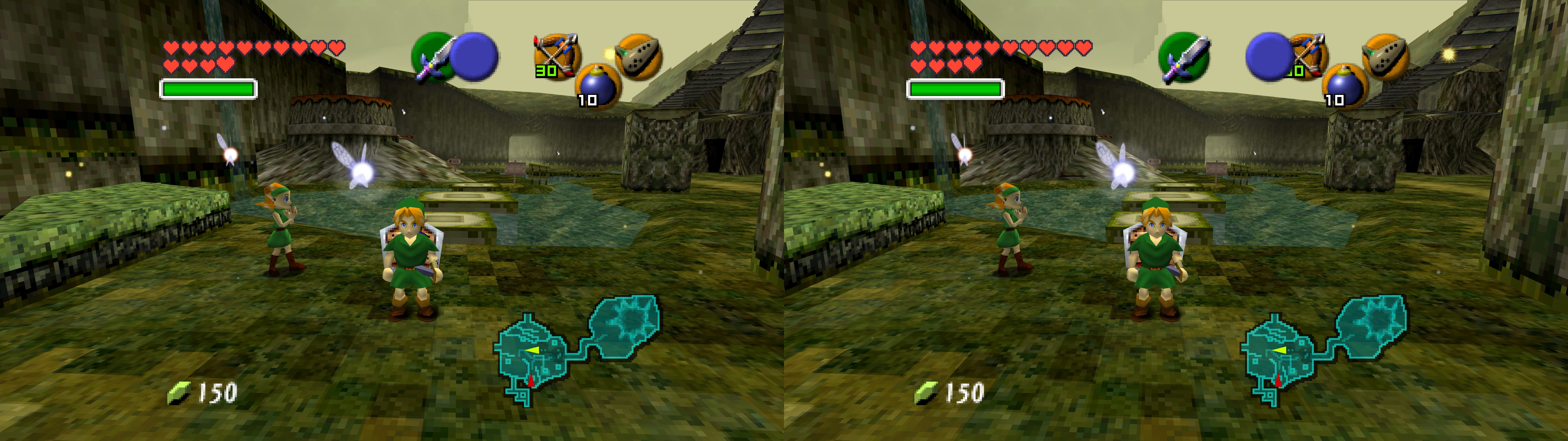
Nintendo 64 (Jabo's Direct3D plugin) [DX11]


3D Vision fix for the Jabo's Direct3D Plugin (DX6, DX7 and DX8) that can be used in Nintendo 64 emulators. The fix needs dgVoodoo to convert the game to DX11. Tested with dgVoodoo 2.55.1 and 2.55.3, and with the Project 64 emulator (version 2.3.2).


Compatible Jabo versions
- Jabo's Direct3D8 1.6.1 (recommended)
- Jabo's Direct3D8 1.6
- Jabo's Direct3D7 1.40
- Jabo's Direct3D6 1.5.2


Fixed
- After being converted to DX11, all Jabo versions have HUD depth, HUD toggle, convergence, and aspect ratio features.
- Profile settings to make it work correctly in 3D.


Known issues
- If you use the DX8 version of the plugin, you can only enable fullscreen once. If you exit it and enter again, the emulator image will freeze until it's in a window again. Close and open the emulator again when this happens.
- In Project64, you must open a ROM from your ROM list or from the recent list. Opening one from "File -> Open ROM" will result in 3Dmigoto not loading, thus losing HUD and convergence hotkeys.
- IMPORTANT: the SBS/TAB/interlaced shader doesn't work, so you are limited to 3D Vision, 3D Vision Discover and 3DTV Play. If I try to use it, it freezes the emulator and then locks up my PC after I try to close the emulator or kill its process.


Installation
- Have Project64 ready with at least one of the plugins I mentioned.
- Download this file and extract its contents in your emulator folder, where for example "Project64.exe" is.
- Download the latest dgVoodoo 2 release or WIP version (at least 2.55.1 version) here: http://dege.freeweb.hu/dgVoodoo2/dgVoodoo2  
- From inside its "MS" folder, copy "D3D8.dll", "D3DImm.dll" and "DDraw.dll" into the emulator folder.
- Open "dgVoodooCpl.exe" and configure it like this, for example, tuning the resolution and some other settings to your liking (uncheck the "Behavior" checkboxes just in case):


- Open the emulator and configure the graphics plugin like this (assuming the DX8 version. Use your own resolution. The last image shows the aspect ratio override to get 16:9 or whatever you use natively):


- Open a ROM from your ROM list or the recent list (mandatory to make 3Dmigoto load).
- Let the program apply the profile changes the first time you run it.


Hotkeys
- k: convergence presets (very game dependant).
- l: aspect ratio mod. In this order, assuming a stretched 4:3 image, these are the presets: corrected 16:9, non corrected triple monitor, corrected triple monitor, default. You don't need this if you use the widescreen hack of the DX8 plugin.
- o: HUD depth presets (usually). Whatever has 0 depth goes to depth.
- i: HUD toggle.
- p: same functionality the HUD depth presets, but with a depth value that catches the skyboxes of Super Mario 64 in the DX7 and DX8 plugins. It's at full depth by default.


Recommended settings
- Use Nvidia Profile Inspector to force 8xSGSSAA if your GPU can handle it. It will greatly reduce texture shimmering, especially if you use point filtering in dgVoodoo.


I have only properly tested Project64, but other emulators that work with the Jabo plugin may work with dgVoodoo and the fix. Please report success/failure to use this with other emulators.


If you liked the fix and want to contribute for more future fixes, you can donate to this PayPal account: masterotakusuko@gmail.com